Smart Glasses · Guide
How to move Ray-Ban Meta glasses to a new phone, iPhone or Android
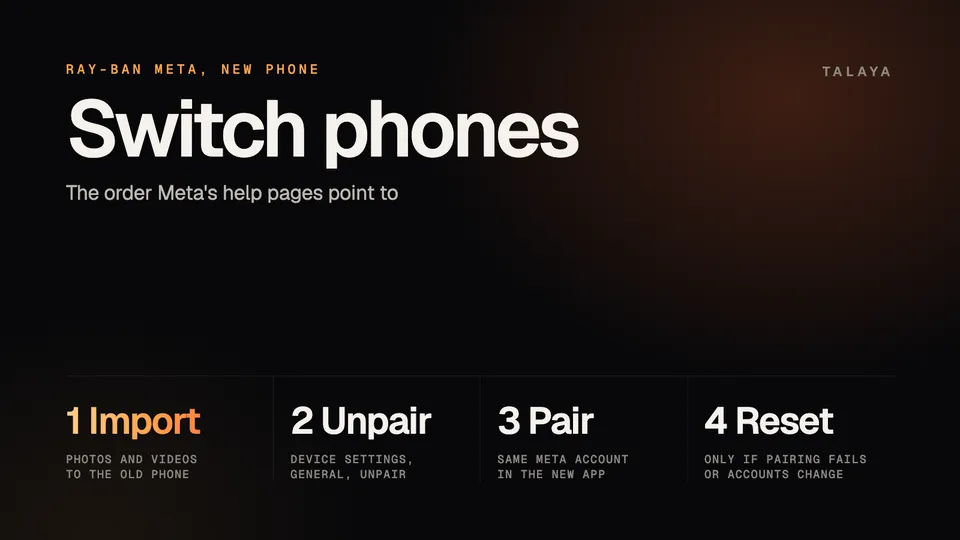
Switching phones means importing your captures, unpairing the glasses from the old phone and pairing them again from the Meta AI app on the new one. Here is the order Meta's help pages point to, and when a factory reset is the way out.
Part of our Ray-Ban Meta guide
To move Ray-Ban Meta glasses to a new phone, import your photos and videos first, unpair the glasses from the old phone, then pair them from the Meta AI app on the new phone with the same Meta account. Meta says unpairing doesn't change or erase your settings. A factory reset is the fallback for a different Meta account, an old phone you can no longer reach or a pairing that won't go through.
This guide is based on Meta's help center and Ray-Ban's support FAQs, and we haven't tested a move between phones.
What happens to the pairing, your captures and your settings
Meta's pairing article says the glasses must be paired to your phone through the Meta AI app and can pair with only one Meta account at a time, so a new phone means pairing again. What happens to everything else depends on where it's stored.
| What | What Meta says |
|---|---|
| Captures not yet imported | They stay on the glasses until you import them. A factory reset erases them |
| Captures already imported | Removed from the glasses and saved to your phone's photos app, according to Meta |
| The Gallery in the Meta AI app | It shows what's in the phone's photos app, with your permission. Deleting media in the app deletes it from the photos app too |
| Cloud media | Copies that some features send to Meta's cloud are deleted after 30 days, so they aren't a backup |
| Glasses settings | Unpairing doesn't change or erase them, and a factory reset does |
| Past Meta AI prompts | Meta's 2025 notice says they appear in the app's History tab and on the Meta.ai website |
Step 1: Import and back up your captures
- On the old phone, turn on Bluetooth and Wi-Fi, switch on the glasses and open the Meta AI app. If captures are waiting, an Import button appears next to Gallery. Tap it. If the button doesn't show, our import guide has the checks.
- Check that the files landed in the phone's photos app. Meta's notice about the move from Meta View says imported photos also sit in a folder named Meta AI, and that if you back up to a cloud service such as Google Photos, you should make sure it backs up that folder.
- Move or back up the whole photo library the way you normally would. Imported captures are saved to the phone's gallery like any other photo or video, as our import guide notes, and the pages we read describe no special transfer tool for them.
- Leave the Gallery alone until the copy is finished, because deleting media in the Meta AI app deletes it from the phone's photos app.
Step 2: Unpair the glasses from the old phone
In the Meta AI app on the old phone:
- Tap Glasses in the top right.
- Tap Device settings. If you have more than one pair paired, swipe left or right to select the right one first.
- Under Glasses, tap your glasses, then tap General.
- Tap Unpair glasses, then Unpair.
Meta says you may also need to forget the glasses in the phone's Bluetooth list to finish unpairing. On an iPhone, Ray-Ban's FAQ says, tap the info icon next to the glasses and choose Forget This Device. Android owners can skip that step.
Logging out is another route. Tap the menu in the top left of the Meta AI app, then Settings, Log out, and confirm. Meta says logging out unpairs every device paired to the app, and you have to pair them again if you log back in.
If the old phone is lost, broken or already wiped, you can't unpair from it. Go on to step 3, and see the factory reset section below if the new phone can't pair.
Step 3: Pair the glasses with the new phone
- Install the Meta AI app from the App Store or Google Play and sign in with the same Meta account you used before, as Meta's setup article describes.
- Turn on Bluetooth. Ray-Ban's India store FAQ lists Android 10 or later with location services on, or iOS 14.4 or later.
- Put the glasses in pairing mode. Take them out of the case, slide the power switch on the left arm toward the front, put them back and wait for the case light to flash blue. If it doesn't, hold the button on the back of the case for at least five seconds.
- In the app, tap Glasses in the top right, tap Add and follow the on-screen instructions.
Start pairing in the Meta AI app, not in your phone's Bluetooth settings, as Meta advises and our pairing mode guide explains. That guide also covers a case light that never turns blue, and our setup guide has the full walkthrough. Keep the old phone as it is until the glasses work on the new one and the photo copy is confirmed.
Moving between iPhone and Android
Meta describes the same setup on both phones, and its pairing article doesn't mention a platform restriction. The differences are small:
- Re-pairing: iPhone owners forget the glasses in Bluetooth settings first, and Android owners can skip that.
- Location: Ray-Ban's FAQ lists location services turned on as part of the Android requirement.
- Video files: new videos save as HEVC on an iPhone and as MP4 on Android, according to Meta.
- Music: Apple Music voice control is iPhone only.
Your imported photos and videos are files in the old phone's library, so a cloud photo service or the transfer tool from your new phone's maker moves them. The pages we read describe no transfer between an iPhone and an Android phone. Our iPhone vs Android guide has the rest of the differences.
Check the new phone's setup
After pairing, check the settings that live in the phone's app.
- Permissions. Meta ties Bluetooth, location, notifications and background activity to the app. Our Meta AI app guide shows where to switch each one on.
- Auto-import. It's on by default on most iPhones and on Android 13 or later, according to Meta. Check Auto-import media under Device settings, Media.
- Calls and messages. Under Device settings, Communication, tap Connect next to each service. Meta's call and message article says connecting your phone asks for access to your contacts, carrier charges may apply, and a dual-SIM phone uses its default SIM. Our calls guide has the commands.
- Music. Reconnect Spotify, Apple Music or Amazon Music in the app. Our music guide lists what works by voice.
Go through Device settings once, since Meta doesn't say which settings come back on their own.
When you need a factory reset
- You're switching to a different Meta account. Meta says the glasses pair with only one Meta account at a time and have to be reset before someone else can pair them to their account.
- You can't unpair from the old phone and the glasses won't pair with the new one. Meta recommends a factory reset for glasses previously paired with a different phone, as our connection guide notes.
- Pairing keeps failing after you've forgotten the glasses in Bluetooth settings and reinstalled the app. Meta's pairing troubleshooting steps end with a factory reset, and Ray-Ban's FAQ gives the same order.
- You're selling or giving the glasses away.
A reset deletes every photo and video stored on the glasses and erases your settings, so import first. Our factory reset guide has the button sequence and what to do afterward.
Frequently asked questions
Do I need to factory reset my Ray-Ban Meta glasses to use a new phone?
Not if you can unpair them from the old phone and use the same Meta account. Meta says unpairing doesn't change or erase settings. A reset is for a different Meta account, an old phone you can't reach or a pairing that keeps failing.
Will I lose my photos and videos when I switch phones?
Photos you've already imported live in your old phone's photos app, so they move only if you move that library. Captures still on the glasses stay there until you import them, and a factory reset erases them.
Can I move Ray-Ban Meta glasses from an iPhone to an Android phone?
Meta describes the same setup steps for both, and its pairing article doesn't mention a platform restriction. It doesn't cover an iPhone to Android switch separately, so use the same import, unpair and pair steps.
Do my Ray-Ban Meta settings carry over to a new phone?
Meta says unpairing the glasses doesn't change or erase their settings. It doesn't say which app settings follow your Meta account to a new phone, so check Device settings after you pair.
Should I log out of the Meta AI app before I sell my old phone?
Logging out unpairs every device paired to the app, Meta says, so it works as a quick unpair. You still need to pair the glasses again from the new phone's app.
What if my old phone is lost or broken?
You can't unpair from it. Install the Meta AI app on the new phone, sign in with the same Meta account and try pairing from the case. If that fails, Meta recommends a factory reset for glasses previously paired with a different phone.
Sources
- Meta Help Center: How to pair and unpair AI glasses with the Meta AI mobile app (archived copy of May 21, 2026)
- Meta Help Center: How media storage works with AI glasses and the Meta AI mobile app (archived copy of June 5, 2026)
- Meta Help Center: Learn more about cloud media on AI glasses (archived copy of July 10, 2026)
- Meta Help Center: How to log out of the Meta AI mobile app (archived copy of June 18, 2026)
- Meta Help Center: Meta View app is now the Meta AI mobile app (archived copy of June 12, 2026)
- Meta Help Center: How to set up AI glasses (archived copy of April 20, 2026)
- Meta Help Center: Call and message using AI glasses (archived copy of June 9, 2026)
- Meta Help Center: Troubleshoot pairing issues with AI glasses (archived copy of Aug. 3, 2025)
- Ray-Ban: Ray-Ban Meta FAQ, India store (page as of Oct. 25, 2026)
- Ray-Ban: Ray-Ban Meta FAQ, US store (archived Nov. 14, 2025)
Join the conversation
Questions, or something to add? Talk about it with other smart glasses owners in r/Talaya, our community on Reddit.