Smart Glasses · Guide
Ray-Ban Meta won't go into pairing mode: how to fix it
Ray-Ban Meta glasses signal pairing mode with a blue light on the charging case. If it never shows up, the cause is usually charge, timing or an old pairing. Here are Meta's fixes, in order.
Part of our Ray-Ban Meta guide
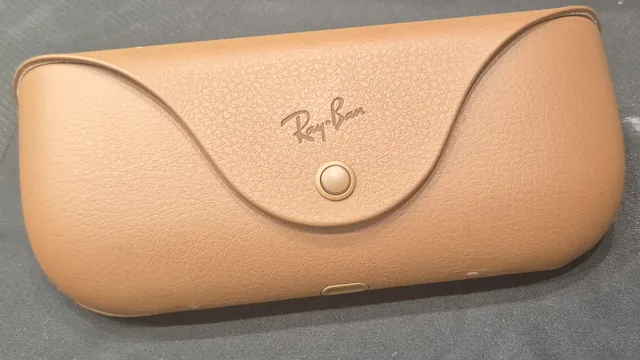
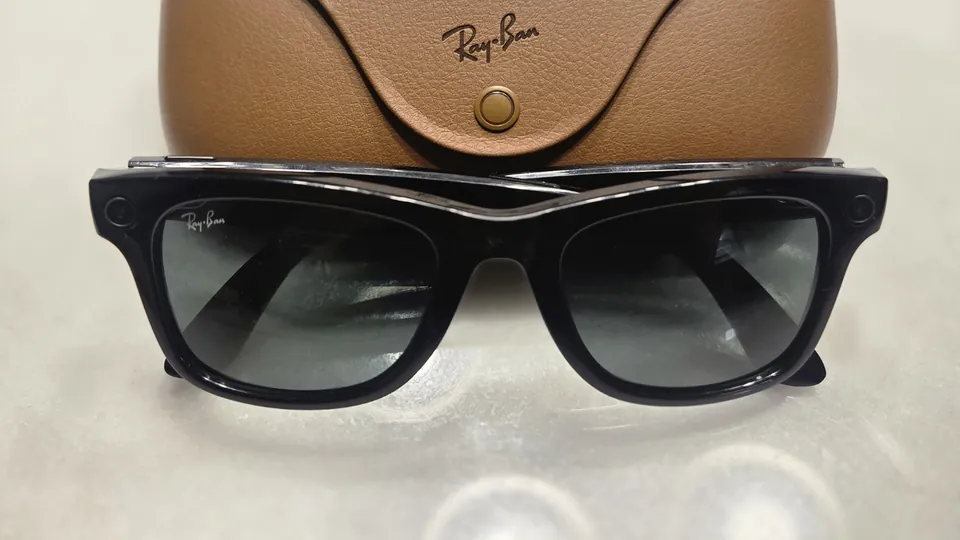
Ray-Ban Meta glasses go into pairing mode through their charging case. Once the glasses are switched on and docked, the LED on the case flashes blue, and that's when the Meta AI app can find them, Meta says. If the light doesn't turn blue by itself, press and hold the button on the back of the case for at least five seconds. If it never turns blue at all, Meta's fix is a factory reset of the case.
This guide is based on Meta's help center, with a note on Oakley Meta from Oakley's support FAQ.
How pairing mode is supposed to work
Meta's steps for a normal pairing are:
- Take the glasses out of the case.
- Turn them on by sliding the power switch on the left arm toward the front of the glasses. Meta says the light inside the frame blinks while they start up and turns solid green when they're ready.
- Put the glasses back in the case and press down gently on top of them, so the bottom of the nose bridge touches the charging port.
- Wait for the case LED to flash blue. If it doesn't, press and hold the button on the back of the case for at least five seconds.
- In the Meta AI app, tap Glasses in the top right, tap Add and follow the instructions on screen.
Check these before you try again
Meta says pairing usually fails because of the charge level of the glasses, the phone's Bluetooth connection or an earlier pairing with a different phone. Its checklist:
- The Meta AI app on your phone is up to date.
- Bluetooth is on and the phone has an active Wi-Fi connection.
- The glasses have charged for at least an hour, or until the case LED is green.
- The glasses are switched on and sitting in the case.
- You waited about 45 seconds after docking the powered-on glasses before you started pairing.
Fixes, from quickest to most drastic
- Wait, then use the button. Give the docked glasses their 45 seconds. Then press and hold the button on the back of the case for five seconds and let go when the case LED pulses blue.
- Start from the app, and forget the old Bluetooth entry. Meta says to always begin pairing in the Meta AI app, not in your phone's Bluetooth settings. If the glasses already show up in the phone's list of Bluetooth devices, forget them there, then try again from the app.
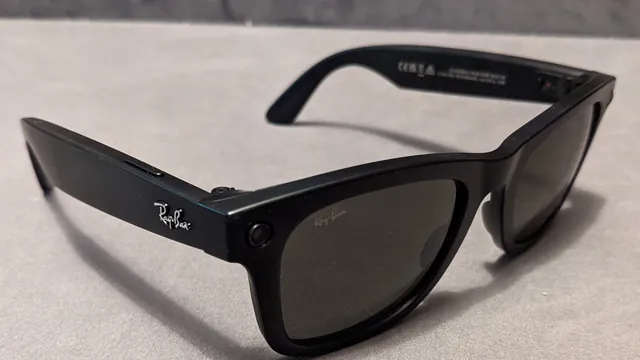
- Force restart if the glasses keep blinking white. If the light inside the frame blinks white nonstop while you're pairing, Meta says to force restart the glasses and start again from the app. On Ray-Ban Meta and Oakley Meta HSTN glasses, a force restart goes like this: slide the power switch back to turn the glasses off, press and hold the capture button, slide the switch forward while you keep holding it, and let go as soon as the status LED turns red. It doesn't delete your photos.
- Reset the case if it never turns blue. Take the glasses out, then press and hold the button on the back of the case for more than 16 seconds. Meta lists this as the fix when the case LED never turns blue.
- Reinstall the app. If the glasses still won't pair, delete the Meta AI app from your phone and install it again.
- Factory reset the glasses. This is the step for glasses that still won't pair, and Meta says to do it if they were previously paired with a different phone. It erases the photos and videos on the glasses, so import anything you want first. Our factory reset guide has the steps.
Secondhand or shared glasses
Meta says AI glasses can pair with only one Meta account at a time, so a used pair of Meta Ray-Bans has to be factory reset before you can pair it with your own account.
Oakley Meta and Meta Ray-Ban Display
Oakley's FAQ describes the same case method for Oakley Meta glasses: with the glasses on and docked, hold the button on the back of the case for five seconds or more and release it when the case light pulses blue.
Meta Ray-Ban Display has its own setup process with the Meta Neural Band. Meta's setup guide for Display and the band explains how to put each device into pairing mode.
When to contact Meta support
If the glasses still won't pair after a case reset, a fresh install of the app and a factory reset, Meta says to contact Meta Store Support. Use the Get support button at the bottom of any article in Meta's AI glasses help center. If the case light won't come on at all, our guide to the charging case lights explains how to check the case's own battery.
Frequently asked questions
Should I pair Ray-Ban Meta glasses from my phone's Bluetooth settings?
No. Meta says to always start pairing from the Meta AI app. If the glasses already appear in your phone's Bluetooth list, choose Forget and then pair them again from the app.
How long do I hold the case button to start pairing mode?
At least five seconds, releasing it when the case light pulses blue. Holding it for more than 16 seconds with the glasses out of the case resets the case instead, according to Meta.
Can I pair Ray-Ban Meta glasses that belonged to someone else?
Only after a factory reset. Meta says the glasses can pair with one Meta account at a time, and they need to be reset before someone else can pair them to their account.
Do I need Wi-Fi to pair Ray-Ban Meta glasses?
Meta's pairing checklist asks for Bluetooth turned on and an active Wi-Fi connection on your phone, along with the latest version of the Meta AI app.
Sources
- Meta Help Center: How to pair and unpair AI glasses with the Meta AI app
- Meta Help Center: How to fix pairing issues with AI glasses
- Meta Help Center: How to turn AI glasses on or off
- Meta Help Center: How to restart AI glasses
- Meta Help Center: How to factory reset AI glasses and charging case
- Meta Help Center: How to set up Meta Ray-Ban Display and Meta Neural Band
- Meta Help Center: AI glasses support
- Oakley: Oakley Meta FAQ
Join the conversation
Questions, or something to add? Talk about it with other smart glasses owners in r/Talaya, our community on Reddit.