Smart Glasses · Guide
How to factory reset Ray-Ban Meta glasses, and what it erases
A factory reset wipes the photos and videos stored on Ray-Ban Meta glasses and means pairing them again from scratch. Here are Meta's steps for the glasses and the case, what to try first and what to do afterward.
Part of our Ray-Ban Meta guide
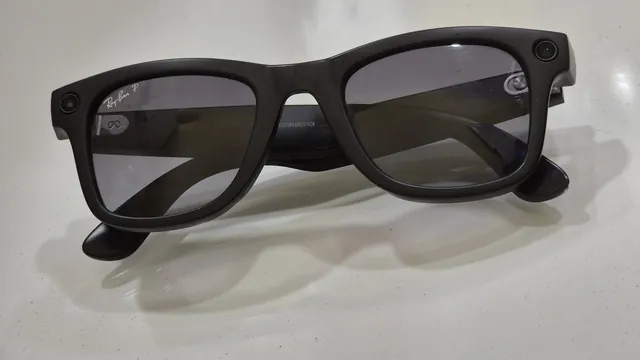
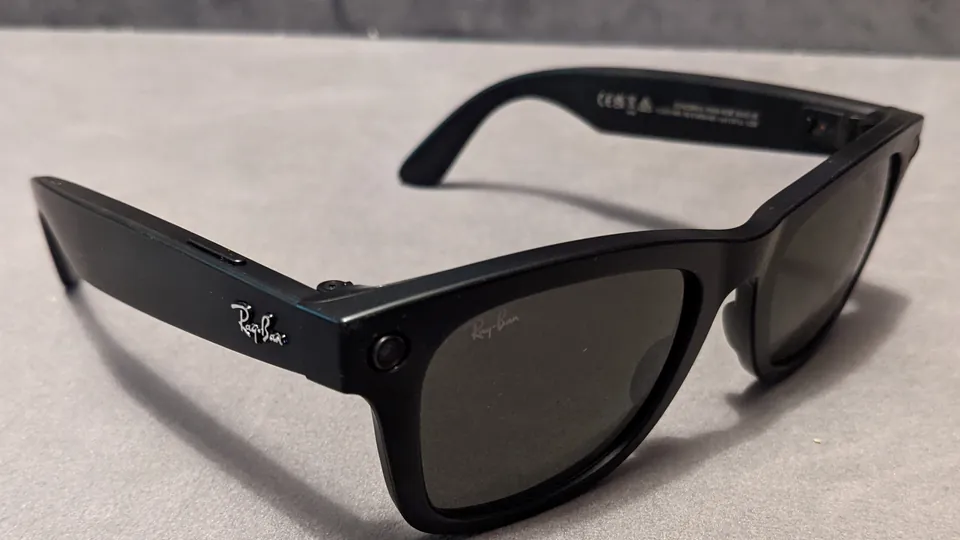
To factory reset Ray-Ban Meta glasses, take them out of the case with the battery charged and the glasses switched on, fold both arms, press the capture button five times until the LED turns orange, then press and hold it until the LED flashes. That's the procedure in Meta's help center, and Meta gives the same steps for Oakley Meta glasses. The reset returns the glasses to factory settings, deletes every photo and video stored on them, and means pairing them with the Meta AI app all over again.
This guide is based on Meta's help center and newsroom and the support FAQs from Ray-Ban and Oakley.
Try a restart first
Meta's pairing and microphone guides list a factory reset as the last step before contacting support, and its restart guide offers two gentler options to try first. A normal restart, sliding the power switch off and on again, won't erase photos you haven't imported or unpair the glasses. A force restart doesn't delete your captures either:
- Slide the power switch back to turn the glasses off.
- Press and hold the capture button.
- Keep holding it and slide the power switch forward.
- Let go as soon as the status LED turns red.
If you've seen people talk about a "hard reset," Meta doesn't use that term. Its help center describes these restarts, which keep your data, and the factory reset, which doesn't.
What a factory reset erases
Meta says a factory reset deletes all of the photos and videos on the glasses, and its microphone guide adds that a reset erases your settings too. The glasses also lose their pairing, so you'll set them up in the Meta AI app again afterward.
Media you've already imported is on your phone, so the reset doesn't touch it. Meta explained in July that photos and videos stay on the glasses until you choose to import them, and that once imported they're saved to your phone's gallery like any other photo.
Before you reset
- Import your photos and videos. Ray-Ban's and Oakley's return instructions both tell owners to import all captures to the phone or the Meta AI app before resetting.
- Charge the glasses. Meta's steps require them to be charged and powered on, so a dead pair can't be reset.
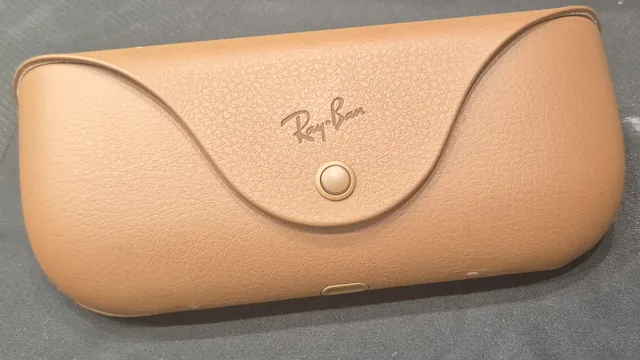
- Take them out of the case. Meta's steps start with the glasses out of their case and the arms folded.
How to factory reset Ray-Ban Meta and Oakley Meta glasses
- Make sure the glasses are out of their case, charged and switched on.
- Close both arms.
- With the arms folded, press the capture button five times. The LED turns orange.
- Press and hold the capture button, and let go when the LED flashes.
Ray-Ban's FAQ describes what comes next: the LED cycles through white and then green before it turns off, which means the reset is complete.
Meta's current instructions don't distinguish between generations: one set of steps covers Ray-Ban Meta and Oakley Meta glasses, and Ray-Ban's FAQ says troubleshooting for the new Gen 3 is the same as for Meta's other glasses without a display. Oakley's FAQ, however, still lists a different method that uses the power switch and the capture button together. That matches Meta's steps for Ray-Ban Stories, below. For Oakley Meta, Meta's own reset article, updated in October, uses the five-press method.
How to reset the charging case
If the case is the problem, it has its own reset. Meta says to take the glasses out, then press and hold the button on the back of the case for more than 16 seconds. Ray-Ban's FAQ adds that the case LED flashes white during the reset. Once it stops, dock the glasses again and plug the case in. Meta lists the case reset separately from the glasses reset.
Other Meta glasses
Meta says Meta Ray-Ban Display glasses and their charging case reset differently, and its main reset article links to separate instructions for them. The same article has its own tab for the Meta Glasses line.
Ray-Ban Stories, Meta's earlier camera glasses, use the power switch instead. These steps come from Meta's Stories help page as archived in August 2025:
- Make sure the glasses are on and ready, with no blinking lights.
- Slide the power switch all the way to the right and hold it there while you press and hold the capture button.
- When the notification LED turns solid orange, release the capture button first and then the power switch.
- The reset is complete when the LED turns off.
What to do after a factory reset
- Pair the glasses again. Turn them on, put them in the case and wait for the case light to flash blue, then tap Glasses and Add in the Meta AI app and follow the instructions.
- Check for updates. In the app, tap Glasses, then Device settings, your glasses, Updates and Check, Meta says.
- Reconnect your calling and messaging apps. Under Device settings, tap your glasses, then Communication, and tap Connect next to Messenger, WhatsApp, Instagram or your phone, as Meta describes.
- Go back through your settings. Because the reset erases settings, revisit the ones you rely on, such as "Hey Meta" preferences.
If you're giving your Meta Ray-Bans away, skip the pairing and turn them off after the reset, as Ray-Ban's and Oakley's return steps say. Meta says AI glasses can pair with only one Meta account at a time, so the new owner pairs them with their own account.
When to contact Meta support
If a factory reset doesn't fix the original problem, Meta's troubleshooting articles end with the same advice: contact Meta Store Support. Use the Get support button at the bottom of any article in Meta's AI glasses help center.
Frequently asked questions
Does a factory reset delete my photos?
It deletes every photo and video stored on the glasses, Meta says. Anything you've already imported is saved on your phone, so import what you want to keep before you reset.
What's the difference between a hard reset and a factory reset?
Meta doesn't use the term "hard reset." Its help center describes a force restart, which keeps your photos and your pairing, and a factory reset, which deletes the media on the glasses, erases your settings and means pairing the glasses again.
Should I factory reset Ray-Ban Meta glasses before selling them?
Yes. Meta says the glasses can pair with only one Meta account at a time, and they have to be reset before someone else can pair them. The return steps in Ray-Ban's and Oakley's FAQs are to import your captures, factory reset the glasses and turn them off.
How do I reset only the charging case?
Take the glasses out, then press and hold the button on the back of the case for more than 16 seconds, according to Meta. That resets the case without resetting the glasses.
Sources
- Meta Help Center: How to factory reset AI glasses and charging case
- Meta Help Center: How to restart AI glasses
- Meta Help Center: How to pair and unpair AI glasses with the Meta AI app
- Meta Help Center: How to fix microphone issues on AI glasses
- Meta Help Center: How to update AI glasses
- Meta Help Center: How to call and message on AI glasses
- Meta Help Center: How to unpair and factory reset Ray-Ban Stories (version archived Aug. 7, 2025)
- Meta Newsroom: Meta's AI Glasses: Your Questions Answered (July 7, 2026)
- Meta Help Center: AI glasses support
- Ray-Ban: Ray-Ban Meta FAQ
- Oakley: Oakley Meta FAQ
Join the conversation
Questions, or something to add? Talk about it with other smart glasses owners in r/Talaya, our community on Reddit.