
Smart Glasses · Guide
Ray-Ban Meta not charging? How to fix the glasses and the case
When Ray-Ban Meta glasses or their case stop charging, Meta says the cause is usually dirty contacts, heat or a charger the case won't accept. Here's how to find which one it is and fix it, from the quickest check to a case reset.
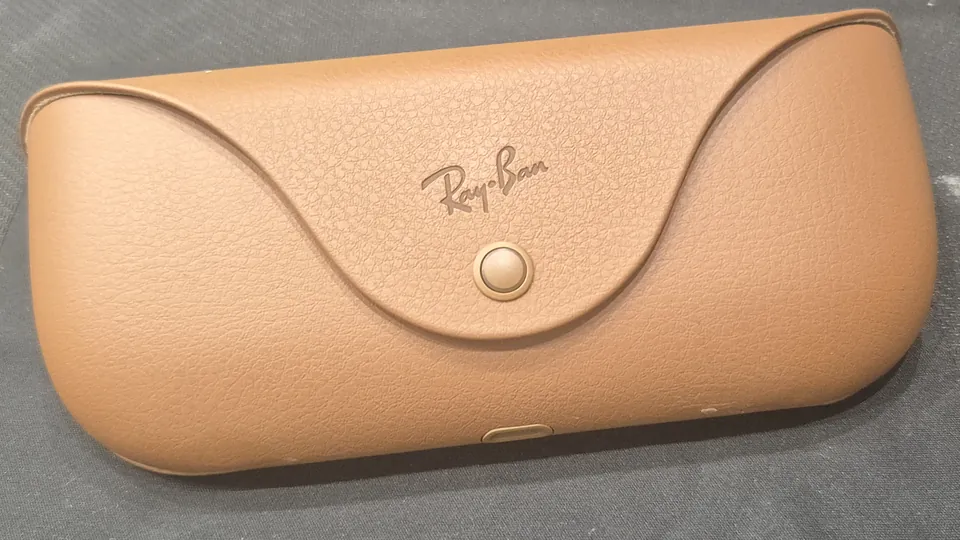
Part of our Ray-Ban Meta guide
Most charging problems with Ray-Ban Meta glasses have one of three causes, according to Meta's help center: dirt or liquid on the charging contacts, a case that has gotten too hot, or a cable or power adapter the case won't accept. Meta gives the same steps for Oakley Meta glasses and for its own Meta Glasses line, so the fixes below apply to those too.
This guide is based on Meta's help center and the support FAQs that Ray-Ban and Oakley publish for the glasses.
First, work out which part isn't charging
Meta's Ray-Ban smart glasses only charge inside their case, through metal contacts under the nose bridge. The case has its own battery, which you charge with a USB-C cable. The LED on the front of the case can show either battery, Meta says: with the glasses docked, press the button on the back of the case to see how charged the glasses are, and with the case empty, the same button shows the case's own level.
A blinking red light means a charging error. An orange or green pattern that keeps pulsing while the Meta AI app shows no charging icon means the power adapter probably isn't compatible. Our guide to the charging case lights covers every color.
Fixes to try, quickest first
- Seat the glasses properly. Put the glasses in the case and press down gently on the top of the frame so the bottom of the nose bridge touches the charging port, as Meta's pairing guide describes. Meta says the case LED blinks once the glasses are docked and the lid is closed. If the pair is new, remove the protective plastic tab from the metal contacts in the case before the first charge.
- Clean the contacts on both sides. Meta says dried sweat, dirt and liquid can all interfere with the connection between the nose bridge and the case, and that glasses which won't turn on may simply not be charging while docked. Meta's cleaning advice is a dampened cloth with mild soap, never alcohol or solvents, and no running water. Wipe the contacts on the nose bridge and inside the case, then let everything dry before you dock the glasses again.
- Let a hot case cool down. A blinking red light can mean the case or the glasses are too hot to charge safely, or that the case has detected liquid on the contacts. Move both somewhere cooler and wait, or wipe the contacts dry and dock again.
- Swap the cable, then the adapter. If it's the case that won't charge, look at the charger: Meta says most USB-C cables work but some power adapters don't. The case takes a USB-C to USB-C or USB-C to USB-A cable from any USB generation, rated for at least 1.2 amps, and a USB-C or USB-A adapter of 5 watts or more. USB Power Delivery isn't required. Lower-rated cables still charge, only more slowly, and Meta says lower-wattage adapters will likely work too, with slower charging. If the light keeps pulsing orange or green, try a different cable first and then a different adapter.
- Give a flat pair time. If the glasses were completely drained, leave them docked for at least an hour. That's the minimum charge, or a green case light, that Meta asks for before you set up a pair.
- Reset the charging case. Meta suggests a factory reset of the case when the case itself is the problem. Take the glasses out, then press and hold the button on the back of the case for more than 16 seconds. Meta lists this separately from a factory reset of the glasses, which is the one that erases your photos and videos.
How the glasses protect their battery
Meta says the case won't charge when it or the glasses get too hot, or when it detects liquid on the contacts, and that's what the red light is telling you. The glasses also switch themselves off to protect the battery. According to the FAQs from Oakley and Ray-Ban, the notification LED inside the frame blinks red four times just before the glasses shut down because the battery ran out or because they got too hot or too cold.
If your complaint is that a full charge doesn't last, compare it with the figures in Meta's battery guide for moderate use:
| Model | Glasses on a full charge | Extra charging from a full case |
|---|---|---|
| Ray-Ban Meta (Gen 1) | Up to 4 hours | Up to 32 hours |
| Ray-Ban Meta (Gen 2) | Up to 8 hours | Up to 48 hours |
| Ray-Ban Meta (Gen 3) | Up to 9 hours | Up to 50 hours |
Meta notes that real times vary with use. Its battery saver mode stretches a charge by pausing "Hey Meta" and other background features.
If you have Meta Ray-Ban Display
The Display glasses come with a different case that has two LEDs. The inner one, next to the nose bridge, lights up when the glasses start charging. If it stays dark, Meta says to wipe the contacts on the nose bridge and inside the case and dock the glasses again. A blinking red light on either LED means liquid on the contacts or too much heat.
When to contact Meta support
If the glasses still won't charge after you've cleaned the contacts, tried another cable and adapter and reset the case, contact Meta with the Get support button at the bottom of any article in its AI glasses help center. Oakley's and Ray-Ban's FAQs say you'll need the serial number, printed on the inside of the left temple, and proof of purchase for a warranty claim. Meta's warranty article explains whether Ray-Ban, Oakley or Meta handles a claim and what defects are covered. Meta also sells replacement charging cases, USB-C cables and power adapters in the Meta Store. And don't keep other glasses in the charging case: Meta warns that it can damage both the glasses and the case.
Frequently asked questions
Can I charge Ray-Ban Meta glasses without the case?
No. Meta says docking the glasses in their charging case is the only way to charge them. The case itself charges over USB-C. Meta's separate Meta Glasses line also has a charging stand.
What charger works with the Ray-Ban Meta case?
Meta says any USB-C or USB-A power adapter of 5 watts or more should work and that USB Power Delivery isn't required, though some adapters aren't compatible. Use a USB-C to USB-C or USB-C to USB-A cable rated for at least 1.2 amps for normal charging speed. Meta's charging guide lists the full requirements.
Why is my Ray-Ban Meta case blinking orange?
With the glasses out of the case, a blinking orange light means the case battery is low, so plug it in. If the light keeps pulsing orange or green while it's plugged in and the Meta AI app shows no charging icon, Meta says the power adapter may not be compatible.
Can I replace the battery in Ray-Ban Meta glasses or the case?
No. Ray-Ban's FAQ says the batteries in the glasses and the charging case are built in and can't be replaced. If they won't hold a charge, contact support about a repair or replacement.
Sources
- Meta Help Center: How to fix charging problems with AI glasses
- Meta Help Center: How to charge AI glasses
- Meta Help Center: Care and cleaning tips for AI glasses
- Meta Help Center: How to pair and unpair AI glasses with the Meta AI app
- Meta Help Center: How to fix pairing issues with AI glasses
- Meta Help Center: How to factory reset AI glasses and charging case
- Meta Help Center: Battery life on AI glasses
- Meta Help Center: How to use battery saver mode for Meta AI glasses
- Meta Help Center: How to charge Meta Ray-Ban Display
- Meta Help Center: How to use Meta Glasses charging stand
- Meta Help Center: How to file a warranty claim for AI glasses
- Meta Help Center: AI glasses support
- Oakley: Oakley Meta FAQ
- Ray-Ban: Ray-Ban Meta FAQ
Join the conversation
Questions, or something to add? Talk about it with other smart glasses owners in r/Talaya, our community on Reddit.

.png)