Smart Glasses · Guide
Ray-Ban Meta charging case lights: what each color and blink means
The small LED on the front of the Ray-Ban Meta charging case reports on two batteries and also signals pairing and errors. Here's what green, orange, red, blue and white mean, and what to do about each.
Part of our Ray-Ban Meta guide
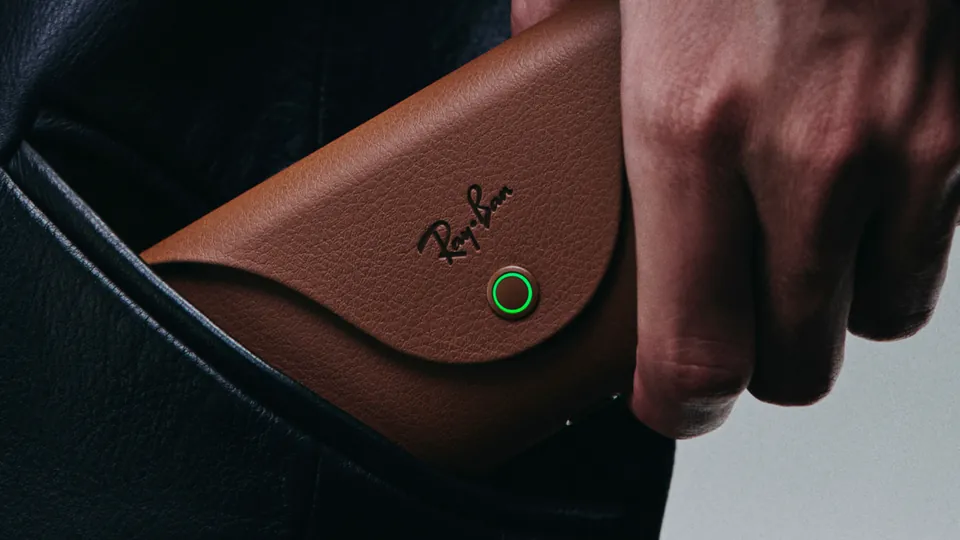
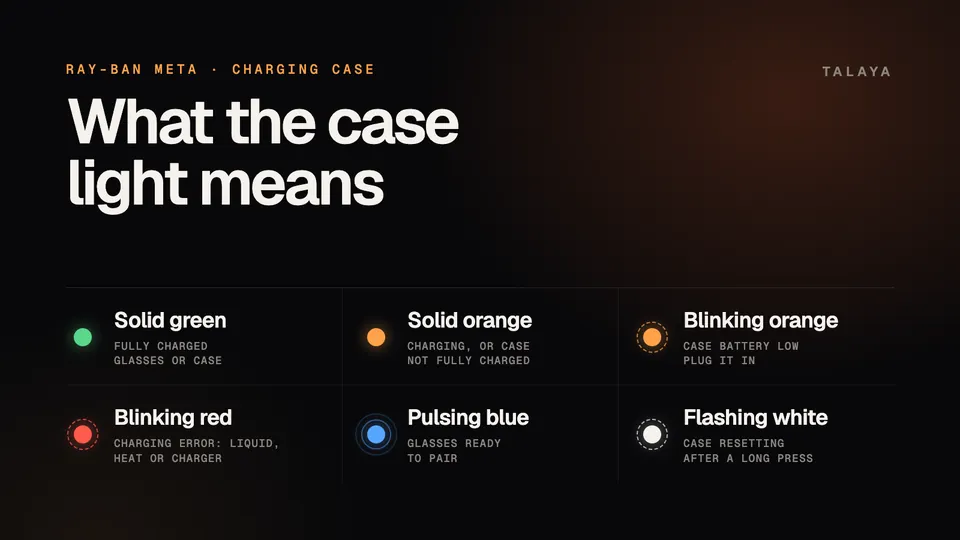
The Ray-Ban Meta charging case has a single LED on the front, and it does several jobs. It shows how charged the glasses are when they're docked and how charged the case is when they're not. It turns blue when the glasses are ready to pair, and it blinks red when something is stopping the charge. The lights below come from the Ray-Ban Meta section of Meta's charging guide, and Oakley's FAQ lists the same ones for Oakley Meta cases.
This guide is based on Meta's help center and the support FAQs that Ray-Ban and Oakley publish for the glasses.
Case light colors at a glance
| What you see | When | What it means | What to do |
|---|---|---|---|
| A blink after you close the lid | Glasses just docked | The glasses have started charging | Nothing |
| Solid green | Glasses docked | Glasses fully charged | Nothing |
| Solid orange | Glasses docked | Glasses charging | Leave them in the case |
| Solid green | Case empty | Case fully charged | Nothing |
| Solid orange | Case empty | Case not fully charged | Charge the case when you can |
| Blinking orange | Case empty | Case battery low | Plug the case in with a USB-C cable |
| Orange or green pulsing nonstop | Case plugged in | The power adapter may not be compatible | Try another cable, then another adapter |
| Blinking red | Any time | Charging error | Clean and dry the contacts, let things cool or change the charger |
| Pulsing or flashing blue | Glasses on and docked | Ready to pair | Add the glasses in the Meta AI app |
| Flashing white | While you hold the back button | The case is resetting, according to Ray-Ban's FAQ | Wait until it stops |
How to check the battery levels yourself
The light isn't on all the time, so you can ask for a reading. With the glasses docked, press the button on the back of the case to see how charged the glasses are. Take the glasses out and the LED shows the case's own level, and pressing the button on an empty case shows it again.
The Meta AI app is the other place to look. When the glasses are connected, Meta says their charge appears in the Glasses tab, and the case level shows up too while the glasses sit in it. The app also has its own guide to the case light: tap Glasses in the top right, tap See all next to Learn and explore, then tap Gestures & LEDs.
Orange: normal while charging, low when blinking
A solid orange light is usually nothing to worry about. With the glasses docked it means they're charging, and with the case empty it means the case isn't fully charged.
A blinking orange light on an empty case means the case battery is low. Charge it through the USB-C port on the bottom. If the case is plugged in and the light keeps pulsing orange or green without settling, and the Meta AI app shows no charging icon, Meta says the power adapter may not work with the case. Try a different USB-C cable first, then a different adapter. Ray-Ban's FAQ adds that a case with a completely dead battery shows a pulsing orange pattern when you first connect it to a working charger, before it starts behaving normally.
Red: something is blocking the charge
A blinking red light means a charging error, and Meta lists three common causes:
- Liquid on the contacts. Wipe the charging contacts on the nose bridge of the glasses and inside the case, then dock the glasses again.
- Too much heat. The case or the glasses are too hot to charge safely. Move them somewhere cooler and wait for them to cool down.
- An incompatible charger. Try a different USB-C cable or power adapter.
If none of those clears the red light, our guide to fixing Ray-Ban Meta charging problems walks through the remaining steps.
Blue: pairing mode, and what to do if it never turns blue
Blue means the glasses are ready to pair with the Meta AI app. Meta's pairing guide says the case LED starts flashing blue once the glasses are switched on and docked. If that doesn't happen on its own, press and hold the button on the back of the case for at least five seconds, and release it when the light pulses blue.
If the case light never turns blue, Meta's fix is a factory reset of the case. Our guide to Ray-Ban Meta pairing mode problems covers the other causes.
White: the case is resetting
To reset the case, Meta says to take the glasses out and press and hold the button on the back for more than 16 seconds. Ray-Ban's FAQ describes what you'll see: the LED starts flashing white, and once you release the button you wait for it to stop. Then dock the glasses again and plug the case in to charge.
Meta Ray-Ban Display uses two lights
The case for Meta Ray-Ban Display has two LEDs, and Meta publishes a battery range for each color. The inner LED, by the nose bridge, shows the glasses' charge when you dock or remove them. The outer LED shows the case's charge when you open or close it, or plug in or unplug the cable.
| Light | Inner LED (glasses) | Outer LED (case) |
|---|---|---|
| Solid green | More than 95% | More than 75% |
| Solid orange | 20% to 95% | 20% to 75% |
| Blinking orange | Under 20% | Under 20% |
| Blinking red | Charging error | Charging error |
On either LED, a red light usually means liquid on the contacts or a temperature that's too high.
When to contact Meta support
Contact Meta if the case stays dark after you've charged it with a different cable and adapter, if it keeps blinking red after you've cleaned, dried and cooled everything, or if it never turns blue after a case reset. Use the Get support button at the bottom of any article in Meta's AI glasses help center. Meta also explains how to order a replacement charging case, and its warranty article says whether Ray-Ban, Oakley or Meta handles a claim.
Frequently asked questions
How do I check the battery level of my Ray-Ban Meta case?
Take the glasses out and the case LED shows the case's charge, or press the button on the back of an empty case. Meta says solid green means fully charged, solid orange means not fully charged and blinking orange means low.
Why doesn't the light on my Ray-Ban Meta case come on?
The light isn't on all the time. It shows a level when you dock or remove the glasses or press the back button. If it never lights, charge the case with a different USB-C cable and power adapter, then try a case reset, and contact Meta if it stays dark.
What does a pulsing green light on the case mean?
If the case is plugged in and the light pulses green or orange without stopping, while the Meta AI app shows no charging icon, Meta says the power adapter may not be compatible. Try another cable, then another adapter.
Does the Oakley Meta case use the same lights?
Yes. Oakley's FAQ lists the same colors for Oakley Meta cases, and Meta says its charging troubleshooting steps apply to Ray-Ban Meta, Oakley Meta and Meta Glasses alike.
Sources
- Meta Help Center: How to charge AI glasses
- Meta Help Center: How to fix charging problems with AI glasses
- Meta Help Center: How to pair and unpair AI glasses with the Meta AI app
- Meta Help Center: How to fix pairing issues with AI glasses
- Meta Help Center: How to factory reset AI glasses and charging case
- Meta Help Center: How to charge Meta Ray-Ban Display
- Meta Help Center: How to order a replacement charging case for Ray-Ban Meta glasses
- Meta Help Center: How to file a warranty claim for AI glasses
- Meta Help Center: AI glasses support
- Oakley: Oakley Meta FAQ
- Ray-Ban: Ray-Ban Meta FAQ
Join the conversation
Questions, or something to add? Talk about it with other smart glasses owners in r/Talaya, our community on Reddit.