
Smart Glasses · Guide
How to set up Ray-Ban Meta glasses with the Meta AI app
Ray-Ban Meta glasses need the free Meta AI app before they do much of anything. Here's what you need, how to pair them on iPhone or Android, what to set up next and how to fix a pairing that won't go through.
Part of our Ray-Ban Meta guide
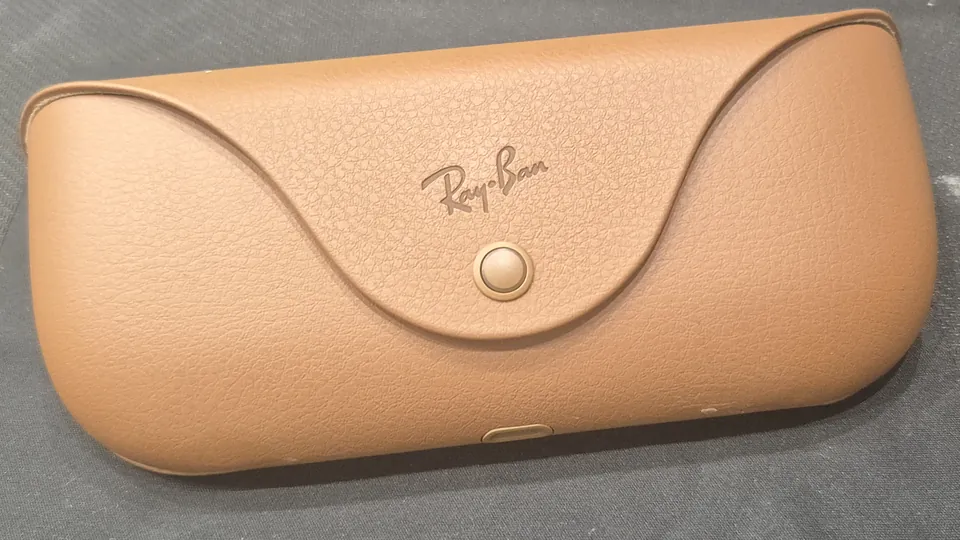
Setting up Ray-Ban Meta glasses comes down to one pairing, done through the charging case and the free Meta AI app. Pairing comes first: Meta's help center says you must pair the glasses with your phone using the Meta AI app before you can use them.
This guide is based on Meta's help center and published specifications. Meta's pairing instructions are written for its AI glasses in general rather than for one model; Meta Ray-Ban Display has its own process, covered at the end.
What you need
- An iPhone or Android phone. Meta says its glasses work with many iOS and Android phones, and it keeps a list of compatible devices.
- The Meta AI app. It's free on the App Store and Google Play, and Meta describes it as "the required companion app" for its AI glasses. If you see older instructions that mention the Meta View app, Meta's help center confirms it's now the Meta AI app.
- A Meta account. You can create one with an email address or sign up with Facebook or Instagram.
- Bluetooth turned on, and charged glasses. Ray-Ban says the glasses need to be fully charged before pairing, and they only charge in their case.
Step 1: Install the app and sign in
Download Meta AI from the App Store or Google Play, open it and log in with your Meta account, or create one when the app asks.
Step 2: Put the glasses in pairing mode
These are the steps from Meta's pairing article:
- Take the glasses out of the case. If they're new, remove the plastic tab between the case and the glasses first, Ray-Ban says.
- Turn them on by sliding the power switch on the left arm toward the front of the glasses.
- Put them back in the case and press gently on top of the frame, so the bottom of the nose bridge touches the charging port inside.
- Wait for the case light to flash blue. That means the glasses are ready to pair.
- If it doesn't flash blue on its own, press and hold the button on the back of the case for at least 5 seconds.
Step 3: Add the glasses in the app
- In the Meta AI app, tap Glasses in the top right.
- Tap Add in the top right.
- Follow the on-screen instructions.
The app walks you through the rest of the setup.
Meta also describes a way to enter pairing mode without the case: with the glasses on and charged, hold the capture button for 12 seconds until the light blinks blue, then follow the steps in the app, according to its Bluetooth FAQ. Ray-Ban's US FAQ adds that you should fold both arms first.
What to set up next
Once the glasses are paired, a few settings are worth a look before you head out:
- Voice: check that "Hey Meta" is on if you want to wake the assistant by voice. Our voice commands guide lists what you can ask.
- Apps: connect WhatsApp, Messenger and Instagram for calls and messages, and Spotify, Apple Music or Amazon Music for music.
- Camera: set the video length and quality you want; our photo and video guide explains the options.
- Controls: learn the touchpad gestures, and on Gen 3, choose what the action button does.
If the glasses won't pair
Ray-Ban's support FAQ suggests working through these in order:
- Make sure the glasses are charged, on and in their case. Charge them for at least an hour, or until the case light turns green.
- Press and hold the button on the back of the case for 5 seconds, and let go when the case light pulses blue.
- If the glasses already appear in your phone's Bluetooth list, choose Forget, then try pairing again.
- Delete and reinstall the Meta AI app.
- As a last resort, factory reset the glasses. A reset permanently erases any photos and videos still on them, so import what you want to keep first.
Switching phones or passing the glasses on
Ray-Ban Meta glasses pair with one Meta account at a time. To move them to a new phone, unpair them first: in the Meta AI app, tap Glasses, then Device settings, tap your glasses under Glasses, then General, Unpair glasses and Unpair. Meta says unpairing doesn't change or erase your settings, and you may also need to choose Forget for the glasses in your phone's Bluetooth settings. If someone else is taking the glasses, they'll need a factory reset before they can pair them to their own account.
Meta Ray-Ban Display is different
Meta Ray-Ban Display, the version with a screen in the lens, sets up with its Meta Neural Band wristband. You scan the QR code inside the box, tap Set up a device in the Meta AI app, pull the tab with the glasses still in the case, then pair the band, according to Meta's Display setup article.
Frequently asked questions
Is there a Ray-Ban Meta app for iPhone?
Yes. The app is called Meta AI, and it's on the App Store for iPhone and Google Play for Android. Meta calls it the required companion app for its AI glasses. It used to be called Meta View.
Do I need a Facebook account to use Ray-Ban Meta glasses?
No. You need a Meta account, which you can create with an email address. You can also sign up with your Facebook or Instagram login.
Can I use Ray-Ban Meta glasses without the app?
Not at first. Meta says you have to pair the glasses with the Meta AI app before you can use them, and you manage settings, updates and imports there.
Can two people share one pair of Ray-Ban Meta glasses?
Not on two accounts. The glasses pair with one Meta account at a time, so a new owner has to factory reset them before pairing them to their own account.
Where is the Ray-Ban Meta quick start guide?
A printed quick start guide comes in the box, and the Meta AI app walks you through setup on screen once you start pairing.
Sources
- Meta Help Center: How to pair and unpair AI glasses with the Meta AI app
- Meta Help Center: How to set up Meta Ray-Ban Display and Meta Neural Band
- Meta Help Center: AI glasses help (home page)
- Apple App Store: Meta AI
- Google Play: Meta AI
- Meta: Bluetooth glasses, style meets connectivity
- Meta: Open-ear audio and Bluetooth on AI glasses
- Ray-Ban: Ray-Ban Meta FAQ, US store (archived Nov. 14, 2025)
- Ray-Ban: Ray-Ban Meta FAQ (India store)
Join the conversation
Questions, or something to add? Talk about it with other smart glasses owners in r/Talaya, our community on Reddit.

.png)