Smart Glasses · Guide
How to update Ray-Ban Meta glasses and fix an update that's stuck or failing
Ray-Ban Meta glasses update through the Meta AI app, which tells you when one is ready. You can also check by hand, and Ray-Ban's FAQ lists six fixes for an update that fails.
Part of our Ray-Ban Meta guide
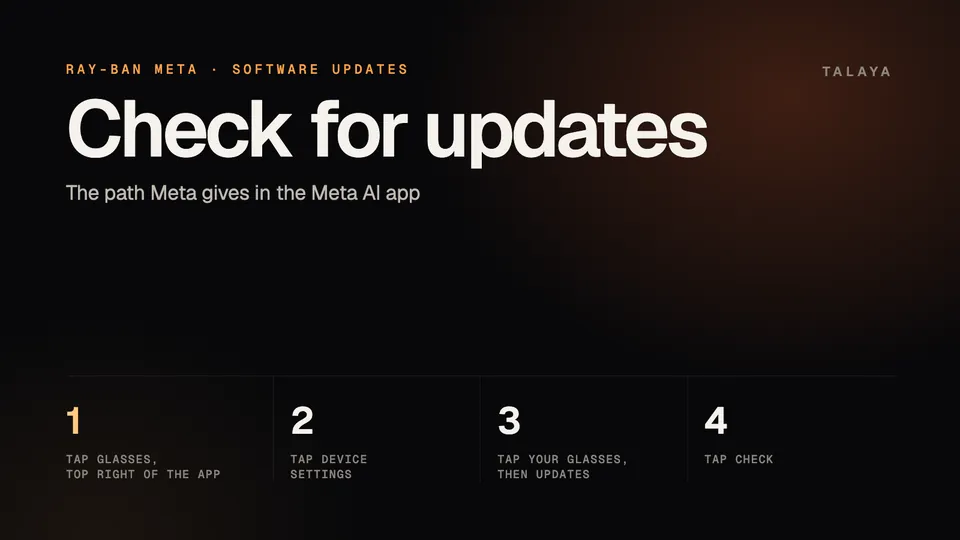
Ray-Ban Meta glasses update through the Meta AI app, which downloads updates by itself and tells you when one is ready. To check by hand, Meta says to tap Glasses, then Device settings, choose your glasses, tap Updates and tap Check. The glasses need enough charge, and the app moves the update to them over a temporary Wi-Fi network that the glasses create.
This guide is based on Ray-Ban's FAQ, Meta's newsroom and blog posts, and the Meta help center guidance summarized in our other Ray-Ban Meta guides. We haven't tested the glasses.
Check for an update
- Update the Meta AI app first. On an iPhone, open the App Store, tap your profile icon and then App Updates. On Android, update from Google Play. Older guides call the app Meta View. It's the same app, as our explainer covers.
- Charge the glasses if they're low. Ray-Ban's FAQ says the charging case is the only way to charge them, and that updates require a minimum charge level that varies with temperature. The app shows a warning if the glasses need more.
- Open the app with the glasses connected, tap Glasses in the top right, then Device settings. If you have more than one pair, swipe to choose yours.
- Tap your glasses, tap Updates, then tap Check.
- On an iPhone, accept the "Join Wi-Fi Network" request when it appears so the update can transfer.
Ray-Ban's FAQ still gives older paths, such as Settings, Your glasses, Glasses update. If your app doesn't show them, use the path above.
What an update needs
The app uses your own Wi-Fi network for normal operation. For firmware updates, Ray-Ban's FAQ says, it connects directly to the glasses' temporary Wi-Fi network instead. Meta says the glasses need to be on Wi-Fi and paired with your phone to check which features are available and to download feature updates.
The charging case has its own updates. Ray-Ban's FAQ says an interrupted case update can leave the case unresponsive, and that docking the glasses again with the power switch on lets the update finish.
On Android, if the app says media can't be imported while the glasses are updating, Meta says to force stop the Meta AI app in your phone's settings (Settings, Apps, Meta AI, Force stop).
Automatic updates, rollouts and Early Access
Meta says the app downloads updates by itself. The pages we read describe no setting for turning that off.
Meta also releases software gradually. In its Dec. 16, 2025 post, it said software updates roll out gradually, starting with people enrolled in its Early Access Program, which you can join in the device settings of the Meta AI app. If a friend has a feature you don't, you may be later in the rollout. Some features also depend on your country and language, and Glasses, Device settings, Experiences shows what your pair supports.
Check the versions
For the glasses, Ray-Ban's FAQ says the update screen is where you check whether they're up to date. Its About screen lists the serial numbers of the glasses and the case. None of the Meta or Ray-Ban pages we could read says where the app shows the glasses' software version number, so use Check to see whether you're current.
For the app, the App Store listing showed version 296.0.0 on Oct. 25. Your phone's App Store (App Updates) or Google Play shows whether a newer one is waiting.
If an update is stuck or fails
Ray-Ban's FAQ lists these steps for a Wi-Fi error during an update. Try them in order if the Try again button doesn't help:
- Close the Meta AI app and reopen it.
- Turn the glasses off and on, and wait until the green LED goes out before you try again.
- Turn Bluetooth and Wi-Fi off and on again on your phone.
- Restart your phone.
- Unpair the glasses in the app, remove them from your phone's Bluetooth list, then try again. Our connection guide has the unpair steps.
- Force restart the glasses. Our factory reset guide has the steps for a force restart, which doesn't delete photos or unpair the glasses.
The FAQ gives no separate steps for an update that stalls without an error message. Save a factory reset for last. It deletes every photo and video stored on the glasses and erases your settings, and Meta's troubleshooting articles list it as the final step before contacting support. If nothing works, use the Get support button at the bottom of any article in Meta's AI glasses help center. Our Meta AI app troubleshooting guide covers sign-in and permission problems.
Where Meta posts release notes and what recent updates added
Meta keeps release notes for its AI glasses in its help center. They include app changes, such as the AI photo editing tools added in April, which our Meta AI app guide describes. Meta's newsroom names some releases by version number. The v21 update, announced Dec. 16, 2025, added conversation focus, which amplifies the voice of the person you're talking to in noisy places, and a Spotify feature that plays a song to match what's in your view. Conversation focus started in Early Access for Ray-Ban Meta and Oakley Meta HSTN in the US and Canada, and the Spotify feature is English only in the countries Meta lists, including the US and UK.
At Connect on Sept. 23, 2026, Meta's blog listed what it says is coming soon to its AI glasses: Dolby Atmos video capture, dynamic photos, a landscape crop mode, Private Processing, FDA-cleared hearing enhancement (US, later this year, $149.99), richer answers about what you're looking at, audio balance and mono audio, and a customizable press and hold on the touchpad. The post doesn't name models for most of them, so check Experiences in the app. Our Meta AI on smart glasses guide lists the AI features Meta added through 2026.
Frequently asked questions
How do I know if my Ray-Ban Meta glasses are up to date?
In the Meta AI app, tap Glasses, Device settings, your glasses, then Updates, and tap Check, as Meta describes. Ray-Ban's FAQ says the update screen is where you check whether the glasses are up to date or install an update.
Why does my iPhone ask me to join a Wi-Fi network during an update?
The glasses create a temporary Wi-Fi network for imports and firmware updates, Ray-Ban's FAQ says, and on iOS you accept the "Join Wi-Fi Network" request so the transfer can start. Meta's Early Access program added Wi-Fi Aware in June, which removes the prompt, as our explainer notes.
Can I turn off automatic updates on Ray-Ban Meta glasses?
Meta says the Meta AI app downloads updates for the glasses by itself and tells you when one is ready. The pages we read describe no setting for turning that off.
Do older Ray-Ban Meta glasses still get updates?
EssilorLuxottica told opticians in March that software updates "are retroactive and supported on both Ray-Ban Meta (Gen 1) and Ray-Ban Meta (Gen 2) models," as our Gen 2 vs Gen 1 comparison notes. Meta hasn't said when Gen 1 will stop getting them.
What is Meta's Early Access program?
Meta's way of getting new glasses features to people first. Meta said in December that software updates roll out gradually, starting with people enrolled in the program, which you join in the device settings of the Meta AI app.
Sources
- Ray-Ban: Ray-Ban Meta FAQ, India store
- Meta Newsroom: Updates to Meta AI Glasses: Conversation Focus, Spotify Integration, and More (Dec. 16, 2025)
- Meta blog: Your Personal Agent Coming to AI Glasses (Sept. 23, 2026)
- Meta Newsroom: Introducing Ray-Ban Meta Audio and More AI Glasses Styles (Sept. 23, 2026)
- App Store: Meta AI (checked Oct. 25, 2026)
- Meta Help Center: How to update AI glasses (page description, archived copy of Sept. 21, 2026)
- Meta Help Center: AI glasses release notes (linked as the place Meta keeps them)
Join the conversation
Questions, or something to add? Talk about it with other smart glasses owners in r/Talaya, our community on Reddit.