Smart Glasses · Guide
Meta AI app not working: fixes for login, crashes, permissions and pairing
When the Meta AI app, formerly Meta View, won't sign in, crashes or can't find your glasses, the fixes start with the account, the phone's permissions and updates. Here are the steps from Meta, Oakley, Ray-Ban and Apple, lightest first.
Part of our Ray-Ban Meta guide
When the Meta AI app won't sign in, crashes or can't find your glasses, the guidance from Meta, Oakley and Apple points to four places to look: the account you're signed in to, a phone permission the app was denied, an out-of-date app or glasses update, and a stale connection to the glasses. Work through the fixes from lightest to most disruptive and stop as soon as the app works. Meta View is the same app: Meta turned it into Meta AI on April 29, 2025.
This guide is based on Meta's help center, Oakley's and Ray-Ban's support FAQs, and Apple's and Google's support pages.
Sign-in and account problems
Meta says a Meta account is required for its AI glasses, and you can create one with an email address, Facebook or Instagram. An email address can have only one Meta account, and the password needs at least eight characters. If a Facebook or Instagram login is what fails, Meta sends you to those services' help centers. If you can't finish creating the account, it points to Meta Store Support.
Check which account you're using. Per Meta, a pair of glasses can pair with only one valid Meta account at a time, so if you have more than one, sign in with the account you set the glasses up with.
Don't log out as a quick fix. Meta says logging out of the app unpairs every device paired to it, and you have to pair them again after you log back in.
Crashes, freezes and an app that won't open
Apple's steps for an app that stops responding start with these three, and Oakley's FAQ lists the first two for the Meta AI app.
- Force close the app and open it again.
- Restart your phone. Oakley's FAQ suggests restarting the glasses too when the connection errors out.
- Update the app. On iPhone, open the App Store, tap your profile icon, then App Updates. On Android, update from Google Play.
If it still fails, check the permissions and updates below before you delete the app.
Phone permissions the app needs
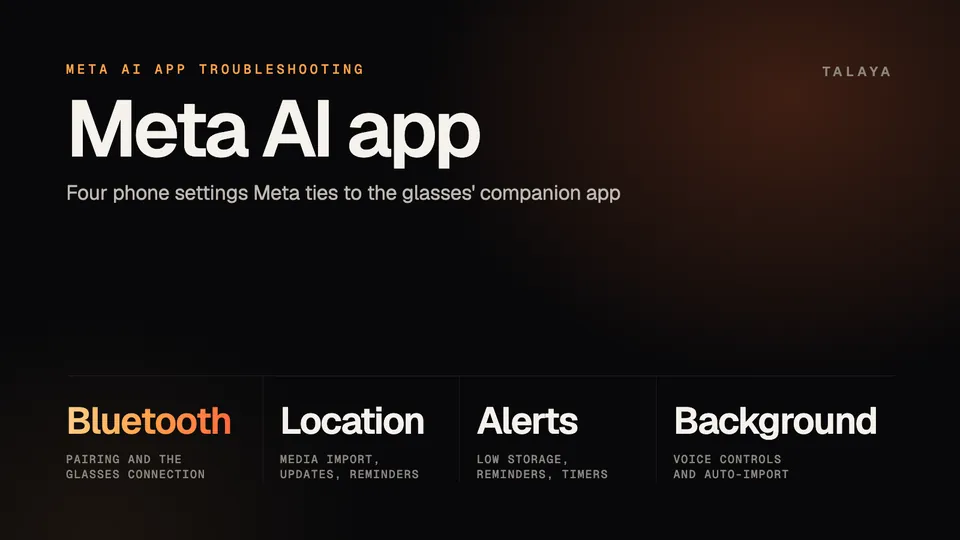
Meta's pages name four things the app relies on: Bluetooth, location, notifications and background activity. If you denied one when the app first asked, you can change it later, as Apple's location guide and Google's permissions page describe.
| Setting | What the help pages say it's for | Where to change it |
|---|---|---|
| Bluetooth | Pairing. Oakley's FAQ says the permission must be granted at the pairing step. | iPhone: Settings, Privacy & Security, Bluetooth. Android: touch and hold the app icon, App info, Permissions. |
| Location | Required for the Wi-Fi link behind media import, glasses updates, geotagging, reminders and navigation on certain Android versions and iOS devices. "Always allow" lets your phone's location help even with the screen off and the app closed. | iPhone: Settings, Privacy & Security, Location Services, then the app. Android: App info, Permissions, Location. |
| Notifications | Low-storage warnings, reminders and timers. | In the app: menu (top left), Settings, Notifications, Devices. |
| Background activity | Some voice controls and media import need the app running in the background. | iPhone: Settings, General, Background App Refresh. Android: see below. |
Oakley's FAQ adds that weather and other location-based answers need location set to "always allow" for the app, and that timers, reminders and alarms need notifications on (alarms also need Do Not Disturb off).
On iPhone, Apple says an app you quit from the app switcher might not be able to run or check for new content until you open it again, so leave the Meta AI app alone in the switcher between uses. On Android, the system shows a persistent notification while the app runs in the background. Meta says you can swipe it away and the app keeps running. On older Android versions where it can't be dismissed, turning off Auto-import media (Glasses, Device settings, Media) removes it, and you then import photos by hand.
If the app can't find your glasses
Check the account first, as above. Then run through Oakley's checklist for glasses that don't show up: the glasses are charged and on, Bluetooth is on, and the glasses are in pairing mode, which means holding the button on the back of the case for five seconds until the case light pulses blue. On iPhone, if the glasses already appear in the Bluetooth list, tap the info icon and choose Forget This Device. Oakley says that isn't needed on Android. If they still don't appear, switch the glasses off and on, then quit and reopen the app.
Our guides cover the rest: pairing mode problems, connections that keep dropping and the factory reset, which Meta says is required before someone else's account can pair the glasses and which erases photos you haven't imported.
App and glasses updates
The Meta AI app downloads glasses updates by itself and tells you when one is ready. To check by hand, tap Glasses, Device settings, your glasses, then Updates and Check, Meta says. Updates need a minimum charge that varies with temperature, and the app shows a warning if the glasses need more, according to Ray-Ban's FAQ and Oakley's.
Oakley's FAQ says updates and photo imports run over a temporary Wi-Fi network that the glasses create, and that on iPhone you accept the "Join Wi-Fi Network" request for the transfer to start. If an update fails with a Wi-Fi error, Oakley's list is to close and reopen the app, turn the glasses off and on and wait until the green light goes out, toggle Bluetooth and Wi-Fi on the phone, restart the phone, unpair and re-pair the glasses, then force restart them. On Android, an error saying media can't be imported while the glasses update has a shorter fix, Meta says: open Settings, Apps, Meta AI and tap Force stop.
If a feature is missing rather than broken, check Glasses, Device settings, Experiences. Availability varies by country, as our explainer notes.
When to reinstall the app
Reinstall after the steps above and before a factory reset. Ray-Ban's FAQ puts deleting and reinstalling the app ahead of a manual factory reset when glasses won't pair. Apple's steps are to delete the app and download it again, and Apple warns you might lose data stored in the app. The main cost is the pairing. Logging out unpairs your devices, so expect to sign in again and pair the glasses from scratch if the app doesn't list them.
Photos you've imported are in your phone's gallery, and Meta says captures you haven't imported stay on the glasses until you choose to import them. If the app still opens, import first, and our import guide has the steps.
When to contact support
If the app still fails after a reinstall, use the Get support button at the bottom of any article in Meta's AI glasses help center. To report a bug from the app, Oakley's FAQ says to open Settings, then Help & Support, make sure "shake phone to report a problem" is on, and shake the phone.
Frequently asked questions
Is Meta View the same as the Meta AI app?
Yes. Meta replaced Meta View with the Meta AI app on April 29, 2025, and updating moved paired glasses, settings and media over. Older guides that mention Meta View apply to this app. Our explainer covers what changed.
Will I lose my photos if I reinstall the app or log out?
Meta says photos and videos you capture stay on the glasses until you import them, and imported ones sit in your phone's gallery, so a factory reset is what erases captures. Logging out unpairs your devices, and Apple warns that deleting an app can lose data stored in it, so import first if the app still opens.
Why does my iPhone ask me to join a Wi-Fi network when I import photos?
The glasses create a temporary Wi-Fi network for imports and firmware updates, and on iOS you accept the "Join Wi-Fi Network" request so the transfer can start, according to Oakley's FAQ. Meta's Early Access program added Wi-Fi Aware in June, which removes the prompt, as our explainer notes.
What phone do I need for the Meta AI app?
Oakley's FAQ lists Android 10 or later with location services on, or iOS 14.4 or later, plus Wi-Fi and a Meta account, and links a list of supported phones. Check the app's store listing for its current requirement.
Can I use my glasses with a new phone?
Yes. Unpair them on the old phone first (Glasses, Device settings, your glasses, General, Unpair glasses), then pair them again from the Meta AI app on the new one. Meta says unpairing doesn't change or erase settings, and each pair works with only one Meta account at a time.
Sources
- Meta Help Center: How to set up AI glasses (archived copy of April 20, 2026)
- Meta Help Center: How to set up a Meta account for AI glasses (archived copy of June 11, 2026)
- Meta Help Center: How to log out of the Meta AI mobile app (archived copy of June 18, 2026)
- Meta Help Center: Meta AI mobile app and location services on Android and iOS devices (archived copy of June 6, 2026)
- Meta Help Center: How to manage push notifications for AI glasses (archived copy of Nov. 16, 2025)
- Meta Help Center: How to dismiss a persistent notification for the Meta AI mobile app on Android (archived copy of June 18, 2026)
- Meta Help Center: Can't import media while AI glasses are updating on Android (archived copy of April 19, 2026)
- Meta Help Center: How to update AI glasses
- Meta Help Center: How to pair and unpair AI glasses with the Meta AI app
- Meta Help Center: AI glasses support
- Meta: Meta's AI glasses, your questions answered (July 7, 2026)
- Oakley: Oakley Meta FAQ
- Ray-Ban: Ray-Ban Meta FAQ, India store
- Apple Support: If an app on your iPhone or iPad stops responding, closes unexpectedly, or won't open (published March 24, 2026)
- Apple Support: Switch apps on your iPhone, iPad, or iPod touch (published Sept. 15, 2026)
- Apple Support: Control the location information you share on iPhone
- Android Help: Manage location permissions for apps
Join the conversation
Questions, or something to add? Talk about it with other smart glasses owners in r/Talaya, our community on Reddit.