Smart Glasses · Guide
Meta Ray-Ban Display not working: fixes for the screen, pairing, updates and charging
Ray-Ban's FAQ and Meta's help center describe fixes for Meta Ray-Ban Display that escalate from display settings and restarts to re-pairing and a factory reset. If they fail, contact Meta, not Ray-Ban.
Part of our Meta Ray-Ban Display guide
When Meta Ray-Ban Display isn't working, the published fixes escalate: check the display settings, restart the glasses, force restart them, re-pair them in the Meta AI app and, as the last step, factory reset them, which deletes the photos and videos stored on the glasses. If none of that helps, contact Meta. It makes the Display and the Neural Band and handles their warranty, even though Ray-Ban's name is on the glasses.
This guide is based on Ray-Ban's Meta Ray-Ban Display FAQ (read in a copy archived May 13, 2026), Meta's help center and release notes, and our own Display guide; we haven't tested the glasses, and app menus can change between versions.
The screen is blank, dim or hard to read
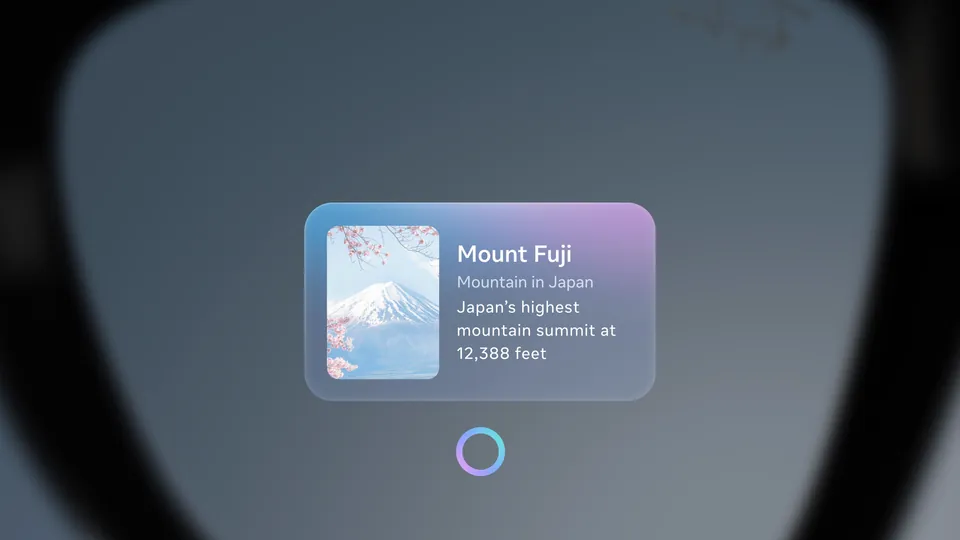
A blank screen can be normal. Meta says the display disappears a few seconds after you stop using it, as our Display guide notes. Wake it by double-tapping your middle finger on your thumb with the Neural Band, or double-tapping the touchpad on the right arm with two fingers.
If the display is on but dim or hard to read:
- From the display menu, swipe left to reach Brightness and Display tilt. Ray-Ban says tilt is for when the display "appears to be tilted for you."
- Check Auto brightness in the Meta AI app (glasses icon, gear, Auto brightness). It's on by default, and manual brightness still works while it's on. Meta's release notes say an April 2026 update added automatic contrast adjustment to the light around you.
- Open the app's Vision settings under Accessibility to enlarge or bold the text, add a color-correction filter or turn on magnification.
Meta's pages don't say how to position the display relative to your eye or which frame size suits which face, so a store demo is the surest fit check, as our prescription and fit guide explains. On a prescription pair, Best Buy's FAQ, as that guide notes, says a wrong pupillary distance can cause "difficulty seeing clearly."
A screen that asks for a six-digit passcode has device lock on. Meta can't reset or recover a passcode, so after repeated wrong attempts a factory reset is the only way back in.
An app or feature is missing
Meta's release notes, which we read in a copy archived Sept. 21, 2026, say which features are limited by country, language or program. Check them before you reset anything.
| If this is missing | What Meta and Ray-Ban say |
|---|---|
| Walking directions | Meta's May 2026 notes list the entire US and cities "like London, Paris, Rome, and more." Driving isn't supported, and the app's location permission must be "Always on" and "Precise," as our navigation guide explains. |
| Messages and calls | Connect Messenger, WhatsApp, Instagram or your phone under Communication in the app. Emergency calls have to come from your phone. |
| Display recording, phone call captions, Spotify playlists | Meta's notes describe all three as available in English, and display recording as available in the US. |
| Writing to Meta AI, Hologram | Early Access features, so they show up only for people in Meta's program, in the countries and languages Meta names. |
| Live captions and translation | Ray-Ban's FAQ says the first use needs a language downloaded in the app. Meta's later notes say 14 added translation languages, among them Arabic, Hindi, Japanese and Korean, need only a network connection. Our captions and translation guide covers the limits. |
If a feature is listed for your country and still missing, update the glasses and the app.
Updates
Meta's release notes tell owners to update both the glasses and the Meta AI app, and Ray-Ban's FAQ says the glasses need Wi-Fi to install updates. Meta words each release as available "starting the week of" a date, so a feature a friend has can take a while to reach you. The pages we could read give no step-by-step path for checking for a Display update by hand.
The glasses won't connect to the phone or the band
The glasses need the Meta AI app, a Meta account and a supported phone, which the FAQ copy we read gives as Android 10 or later with location services on, or iOS 14.4 or later.
If the app can't find the glasses or the connection drops:
- Restart and force restart the glasses (steps below).
- In the app, tap the glasses icon in the bottom right, then the gear icon, General, Unpair glasses and Unpair. If the glasses still appear in your phone's Bluetooth list, forget them there too.
- Take the glasses out of the case, switch them on and put them back with the nose bridge touching the charging port. When the case LED flashes blue they're ready; if it doesn't, hold the button on the back of the case for at least five seconds. Then tap the glasses icon and the plus icon in the app.
The glasses pair with one Meta account at a time, so a pair that belonged to someone else needs a factory reset first. The band pairs separately, as our Neural Band troubleshooting guide explains.
Restart, force restart and factory reset
To restart, turn the glasses off and on again. The power switch is on the left frame, and sliding it away from the lenses until you see the red line turns them off. If that doesn't help, force restart, which Ray-Ban says keeps your captures and your pairing:
- Close both arms.
- Slide the power switch away from the lenses until you see the red line.
- Hold the capture button and slide the switch toward the lenses.
- Release the capture button when the LED turns red, then wait about 17 seconds.
To force restart the Neural Band, hold its button until the LED fades out completely, about eight seconds.
A factory reset deletes all captures and requires re-pairing, so import your photos and videos first. Then:
- Close both arms.
- Press the capture button five times, then press and hold it.
- When the notification LED turns orange, keep holding until it pulses white and orange, then release.
- Unpair the glasses in the app and pair them again.
To reset the charging case, open it and insert and remove the USB-C cable three times within 11 seconds, using the port on the ridge side. The LED next to the port blinks white when it works.
Charging problems
The glasses charge in the folding case: close the arms and slide them in until the nose bridge meets the case. The LED inside the case shows the glasses' charge, according to Ray-Ban's FAQ: solid green above 95%, solid orange from 20% to 95% and blinking orange under 20%. Blinking red means a charging error with one of two causes. Liquid at the charging contacts calls for wiping the contacts on the glasses and the case and trying again. A temperature that's too high calls for moving both somewhere cooler.
After any water exposure, Ray-Ban says to dry the glasses thoroughly and clear the charging areas of residue or other debris. Rated hours, including the band's separate charger, are in our battery life guide.
When to contact Meta
Meta manufactures the Display and the Neural Band, so it handles their warranty claims, according to Meta's warranty article (archived copy of June 6, 2026). Before a claim, Meta asks you to update the glasses and the app, restart the glasses and try a factory reset if the problem continues.
Then contact Meta Store Support with your order number and a description of the problem. Meta says it will review the issue and give next steps for repair or replacement. Ray-Ban's FAQ says a claim needs the serial number and proof of purchase. The serial number is in the app (glasses icon, gear, General, About) and printed inside the left arm. Meta-made products show their warranty status at meta.com/my/devices, and the warranty lasts one or two years depending on the country of purchase, Ray-Ban's FAQ says.
The Meta AI app's Help & support menu has a Submit a report option for bugs. Meta's article doesn't say you'll get a reply, so it doesn't replace a claim. Contacts, what to have ready and scam warnings are in our customer support guide, and warranty terms are in our warranty guide.
Frequently asked questions
Does a factory reset delete my photos on Meta Ray-Ban Display?
Yes. Ray-Ban's FAQ says a factory reset deletes all captures on the glasses and means you have to pair them again. A force restart doesn't delete captures. Import your photos and videos to the Meta AI app first, because Ray-Ban says importing moves them to your phone and removes them from the glasses.
Why won't my Meta Ray-Ban Display pair with a new phone or account?
The glasses pair with one Meta account at a time, according to Ray-Ban's FAQ. If they were set up under another account, as on a secondhand pair, factory reset them before you pair. Unpairing alone doesn't change or erase settings.
What if I forgot the passcode on my Meta Ray-Ban Display?
Meta can't reset or recover it, Ray-Ban's FAQ says. You have to factory reset the glasses and pair them again. After repeated wrong attempts the glasses lock, and the waits get longer with each failed try.
Who repairs Meta Ray-Ban Display, Meta or Ray-Ban?
Meta. Its help center lists Meta Ray-Ban Display and the Meta Neural Band as first-party products covered by Meta's Limited Warranty, with claims handled through Meta Store Support. Ray-Ban handles Ray-Ban Meta glasses. Our customer support guide covers who handles what.
How do I update Meta Ray-Ban Display?
Meta tells owners to update both the glasses and the Meta AI app, and Ray-Ban's FAQ says the glasses need Wi-Fi to install updates. The pages we could read give no step-by-step path for checking by hand. Meta words each release as available "starting the week of" a date, so a new feature can take time to reach your pair.
Can I keep using Meta Ray-Ban Display if the Neural Band isn't working?
Yes. The touchpad on the right arm and "Hey Meta" voice commands work without the band, as our Display guide explains. Our Neural Band troubleshooting guide covers fixing the band itself.
Sources
- Ray-Ban: Meta Ray-Ban Display FAQ (read in the Wayback Machine copy of May 13, 2026)
- Meta Help Center: How to file a warranty claim for Meta AI glasses (archived copy of June 6, 2026)
- Meta Help Center: AI glasses release notes (archived copy of Sept. 21, 2026)
- Meta Help Center: How to report a bug on AI glasses (archived copy of Feb. 15, 2026)
Join the conversation
Questions, or something to add? Talk about it with other smart glasses owners in r/Talaya, our community on Reddit.