Smart Glasses · Guide
Meta Neural Band not working: fixes for gestures, pairing, charging and fit
When Meta Neural Band gestures stop registering, Ray-Ban's FAQ says to check fit and size first. If both are right, restart the band, re-pair it, clean it and, as a last step, factory reset it.

Part of our Meta Ray-Ban Display guide
When Meta Neural Band gestures stop registering, Ray-Ban's FAQ says to check two things first: that you're wearing the band correctly and that it's the right size. If both are fine, restart the band, re-pair it in the Meta AI app, clean it and, as a last step, factory reset it. Meta makes the band and handles its warranty.
This guide is based on Ray-Ban's Meta Ray-Ban Display FAQ (read in a copy archived May 13, 2026), Meta's help center and release notes, and our Neural Band explainer; we haven't tested the band.
Gestures aren't recognized
Check how you wear it
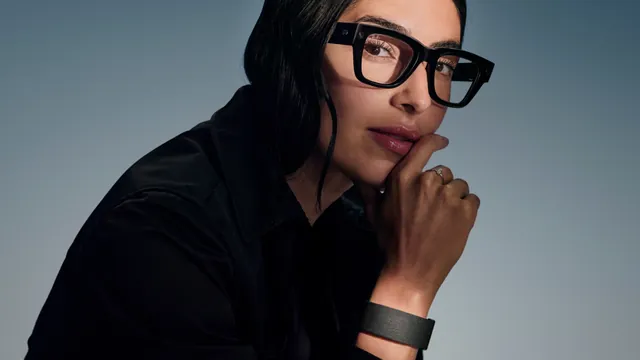
Ray-Ban's FAQ says the band fits differently from other wristbands and watches, and it lists five rules:
- Wear it on the hand you write with.
- Turn it so the line on the band faces you.
- Place it just past your wrist bone.
- Close the clasp so the band is snug but comfortable.
- Keep the compute module on top of your wrist.
Worn this way, the band reads gestures with your hand by your side or in your lap, so you don't need to hold your arm out. To test it, tap your index finger on your thumb to select, tap your middle finger on your thumb to go back and swipe your thumb along your index finger to scroll. The other gestures are in our explainer.
Check the size
The band comes in sizes 1 (small), 2 (medium) and 3 (large). In a store, an associate measures you and shows you where and how tightly to wear it. Online, Meta's sizing tool uses your phone's camera and recommends a size in less than a minute, as our explainer describes. Meta says it's normal for a wrist to fit more than one size: use the measurement you're most confident in, and if the results keep differing, pick the smaller size. The pages we read don't say whether Meta or retailers swap a band for another size, so ask Meta Store Support or the seller.
Check the settings
In the Meta AI app, tap the glasses icon in the bottom right, then the gear icon and Gestures. You can reassign the thumb double tap and invert the horizontal and vertical swipe directions on the band, so if scrolling feels backward, check that setting.
Watch for a fit warning
Meta's release notes describe a Neural Band feature called Orientation Detection: the glasses may show a notification if the band is worn incorrectly, so you can adjust it "for the best signal possible." The notes give no release date.
If the band keeps missing gestures, the touchpad on the right arm and "Hey Meta" voice commands still work, so you can keep using the glasses while you sort it out.
The band won't connect or needs re-pairing
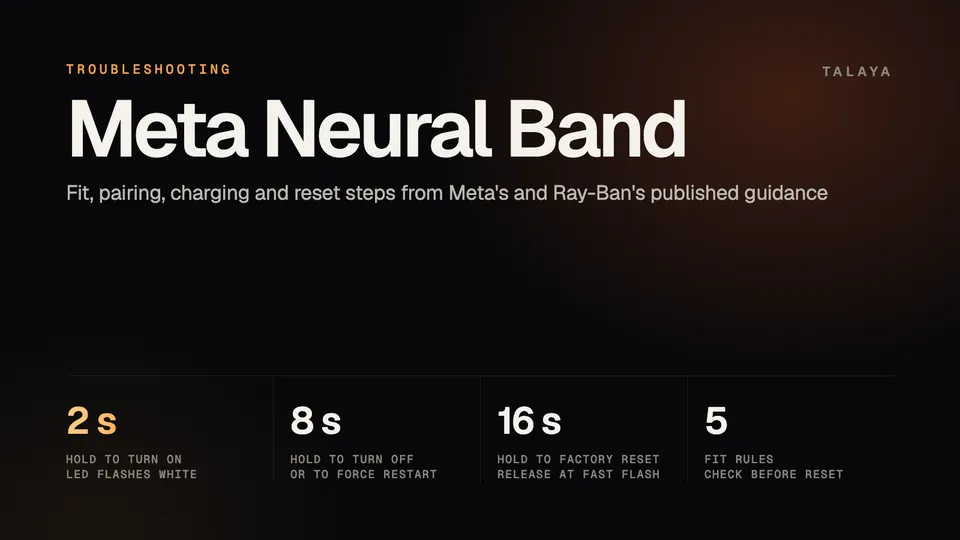
Turn the band on first: hold its button for two seconds until the LED flashes white and the band vibrates. Then:
- In the Meta AI app, tap the glasses icon in the bottom right, then the gear icon. If you have several devices paired, swipe to select the band. Tap General, Unpair wristband and Unpair.
- If the band still appears in your phone's Bluetooth connected devices, forget it there too.
- Hold the band's button for three seconds until the LED rapidly flashes white.
- In the app, tap the glasses icon, then the plus icon, swipe down and tap Meta Neural Band. Follow the prompts and tap "Light is white" when asked.
Unpairing doesn't change or erase settings, Ray-Ban's FAQ says. The band pairs with one Meta account at a time, so it needs a factory reset before someone else can pair it. It also needs the glasses: in Ray-Ban's setup steps you pair the Display first and the band second.
To force restart the band, hold the button until the LED fades out completely, about eight seconds. Turn it back on with a two-second hold. A force restart doesn't require re-pairing.
A factory reset is the last resort. Hold the button for about 16 seconds and release when the LED is quickly flashing white and amber. The band returns to its factory settings, and you have to unpair it in the app and in your phone's Bluetooth menu and pair it again.
Charging and battery
Meta rates the band at up to 18 hours on a single charge, according to its battery article (archived copy of Dec. 17, 2025). It charges on its own charger:
- Attach the charger to the compute module underneath the band.
- Plug the USB-C end into a power adapter, then plug the adapter into a wall outlet.
- Check that the LED on top of the band turns on, which shows it's charging.
Don't plug the band's USB-C charging cable into the port on the glasses' charging case. Ray-Ban's FAQ says that won't charge it. The LED also shows charge when you dock or remove the band or press the button on its side: solid green above 80%, solid orange from 20% to 80% and blinking orange under 20%. Neither the battery article nor the FAQ gives a charging time. Our Display battery life guide covers the rated hours.
If the band won't charge, Ray-Ban says to turn it off, rub the metal charging pins with a non-alcohol wet wipe and dry the band completely before you charge or wear it.
Updates
Meta lists Neural Band software in its release notes separately from the glasses' own, under headings such as "Meta Neural Band v5 release notes," and tells owners to update both the glasses and the Meta AI app to get the improvements. The pages we could read describe no separate update step for the band. Our Display troubleshooting guide covers what Meta says about updating the glasses and the app.
Cleaning, skin contact and water
Ray-Ban's FAQ says regular cleaning helps prevent a buildup of skincare products, sweat and other debris that can interfere with charging and other functions. To clean the band:
- Turn it off by holding the button. Ray-Ban's cleaning steps say six seconds and its power instructions say eight, so hold until the LED goes dark and the band vibrates.
- Wipe the band and the compute module with a clean, soft, dampened cloth.
- Dry the band completely before you charge or wear it.
Ray-Ban says to avoid abrasive materials, ultrasonic cleaners, solvents, alcohol, soaps and steam, and not to hold the band under running water. Ray-Ban adds that keeping the band dry can help prevent irritation.
Meta rates the band IPX7. Under the IEC 60529 standard, as our IPX4 explainer notes, a 7 means immersion in up to one meter of fresh water for 30 minutes. Ray-Ban's care steps still tell you to keep the band out of running water, so follow them.
When to contact Meta
Meta makes the band, so Meta handles warranty claims, according to its warranty article (archived copy of June 6, 2026). Before you file, Meta asks you to update the glasses and the app, restart them and try a reset. Then contact Meta Store Support with your order number and a description of the problem. Meta says it will review the issue and provide next steps for repair or replacement.
The band's serial number is underneath the clasp, on the bottom of the metal tab. Have it and your proof of purchase ready, and check the warranty status at meta.com/my/devices. Our customer support guide covers the contacts and scam warnings, and our warranty guide covers what a warranty does and doesn't cover.
Frequently asked questions
Can I keep using my glasses while the Neural Band isn't working?
Yes. The touchpad on the right arm and "Hey Meta" voice commands work without the band, as our Display guide explains. Features that depend on the band, such as neural handwriting, won't work until it does.
What do the Neural Band's LED colors mean?
On its charger, or when you press the button, solid green means full (above 80%), solid orange means partial (20% to 80%) and blinking orange means low (under 20%), according to Ray-Ban's FAQ. A white flash with a vibration means the band is turning on, rapid white flashes mean pairing mode, and quick white and amber flashes mark the point to release during a factory reset.
Can I pair the Neural Band with a second phone or Meta account?
The band pairs with one Meta account at a time, Ray-Ban's FAQ says, so factory reset it before someone else pairs it to their account. After a reset you unpair and pair again in the Meta AI app and in your phone's Bluetooth menu.
Can I rinse the Neural Band under the tap?
No. Meta rates the band IPX7, but Ray-Ban's cleaning steps say not to hold it under running water, to avoid soaps, alcohol and solvents, and to wipe it with a soft dampened cloth and dry it completely.
Does the Neural Band need to touch my skin?
The sensors on the inside of the band pick up the electrical signals of your wrist muscles, and Ray-Ban says to wear it snug, just past the wrist bone. The pages we read don't say whether clothing in between affects the readings. Ray-Ban does say skincare products and sweat on the band can interfere with charging and other functions.
What happens to my settings if I factory reset the Neural Band?
The band returns to its original factory settings, and you have to unpair and pair it again, Ray-Ban's FAQ says. A force restart doesn't require re-pairing.
Sources
- Ray-Ban: Meta Ray-Ban Display FAQ (read in the Wayback Machine copy of May 13, 2026)
- Meta Help Center: How to file a warranty claim for Meta AI glasses (archived copy of June 6, 2026)
- Meta Help Center: AI glasses release notes (archived copy of Sept. 21, 2026)
- Meta Help Center: Battery life on Meta Ray-Ban Display and Meta Neural Band (archived copy of Dec. 17, 2025)
Join the conversation
Questions, or something to add? Talk about it with other smart glasses owners in r/Talaya, our community on Reddit.