
Smart Glasses · Guide
Hey Meta settings on Ray-Ban Meta: turn it off, change the voice and language
Hey Meta is a toggle in the Meta AI app, and the touchpad can start Meta AI without it. Here are the menu paths for the wake word, follow-up questions, Meta AI's voice and language, and the other settings that change how it answers.
Part of our Ray-Ban Meta guide
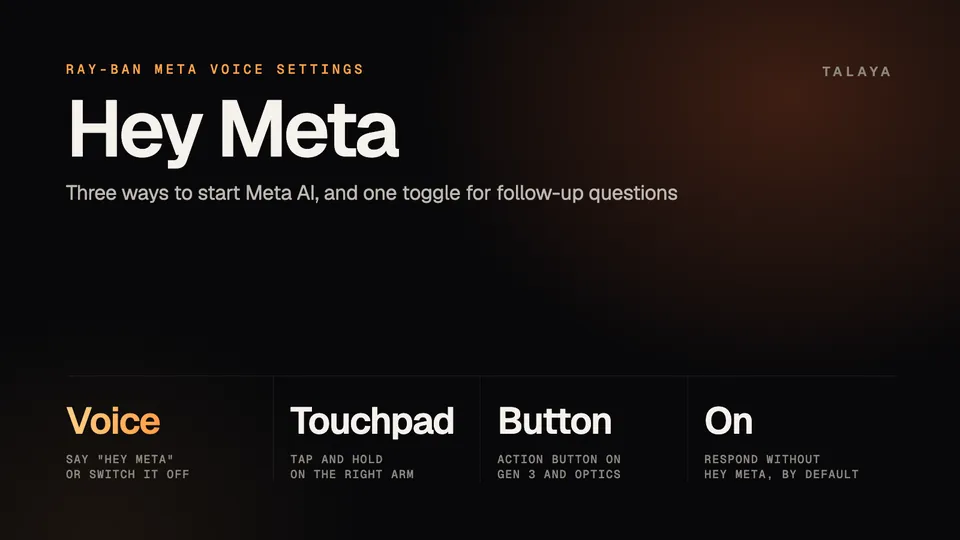
To reach the Hey Meta settings, tap Glasses in the top right of the Meta AI app, then Device settings, then Meta AI, then "Hey Meta" preferences. If more than one pair is paired, swipe to your glasses before you tap Device settings. That path comes from Meta's help article on follow-up questions, and Ray-Ban's FAQ names the toggles on that screen: "Hey Meta" and Wake sound.
This guide is based on Meta's help center, release notes and voice privacy notice, and on Ray-Ban's FAQ. If Meta AI stops answering, see our troubleshooting guide instead.
Turn Hey Meta off or on
- Open "Hey Meta" preferences by the path above.
- Tap the toggle next to "Hey Meta."
- Leave Wake sound on if you want a tone when the glasses hear you. Ray-Ban's FAQ says the notification light blinks white when the glasses recognize the wake word, with a sound too if Wake sound is on.
Meta's app FAQ says disabling "Hey Meta" deactivates Meta AI's camera access by voice, the feature that captures an image to help answer questions about what you see. Our privacy settings guide covers the rest of Meta AI's camera and voice controls. Ray-Ban's FAQ says voice capture, such as "Hey Meta, take a photo," works when voice is wake word enabled. Meta doesn't list everything else that stops, and the capture button is the other way to take photos and video.
Ray-Ban's FAQ gives a different route to the same screen, through the settings gear and a Voice toggle. If your app doesn't match Meta's path, look for the Voice and "Hey Meta" preferences screens under your glasses' settings.
Battery saver also pauses "Hey Meta." While it is on, Meta says to use the touchpad instead. If you turn on its automatic option, it starts when the battery drops to 20% or below while the glasses aren't charging, and it turns itself off once they reach 75%.
The wake phrase
Meta's voice privacy notice says Meta AI activates on "Hey Meta" or "another wake word, if available," and Ray-Ban's FAQ troubleshooting text also mentions "OK Meta." None of the Meta or Ray-Ban pages we read describes a setting for choosing your own wake phrase.
Start Meta AI without the wake word
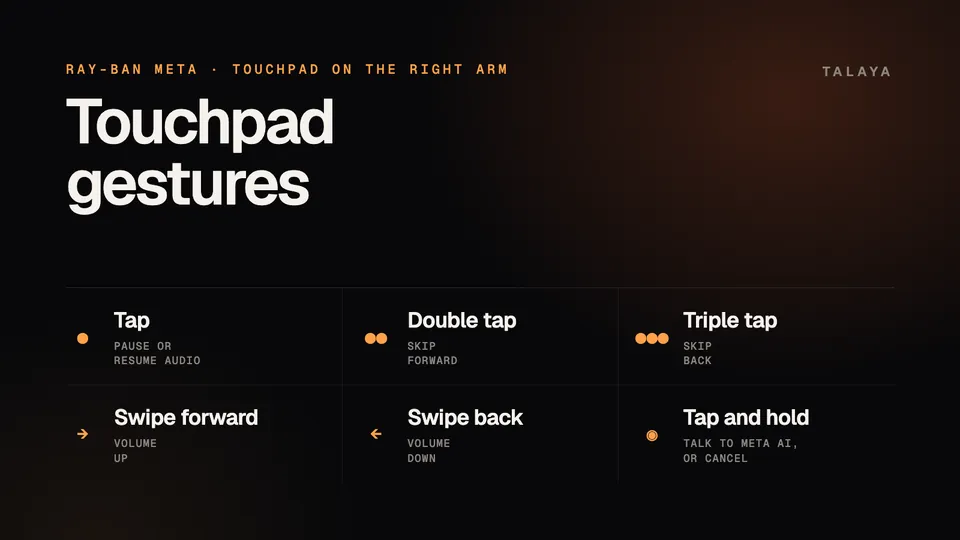
To use the touchpad, tap and hold it on the right temple. Meta's help center lists it beside "Hey Meta" as a way to activate Meta AI, and its voice privacy notice says it works when the touchpad is designated to activate Meta AI in the app settings. Meta's release notes put the gesture settings under Gestures in Device settings, and Ray-Ban's FAQ words it as Your Glasses, Gestures, Touchpad. Our touchpad guide covers the other gestures.
Ray-Ban Meta Gen 3 has a customizable action button, which Meta's launch announcement describes as giving "instant access to Meta AI." Ray-Ban's FAQ gives the steps to assign it: tap the glasses icon in the Meta AI app, pick your glasses if you have several, tap Settings, then Customize controls and Action button, and choose an action. Some actions, such as live translation or quick connect, may need extra setup. Meta also has separate help articles for the action button on Ray-Ban Meta Optics, Meta Glasses and Oakley Meta Vanguard.
Follow-up questions without the wake word
Respond without "Hey Meta" is on by default. With it on, you can ask a follow-up without repeating the wake phrase. Meta's example is asking when the Washington Monument was built and then "How tall is it?" To switch it off, open "Hey Meta" preferences and tap the toggle next to Respond without "Hey Meta."
According to Meta, the microphone stays on after each request and turns off automatically if you don't make another request after a little while. If you speak after a voice command, the glasses record and process your audio, and the notification light shows when they are processing it. If Meta detects speech that isn't meant for the glasses, they won't react, and some requests, such as music controls, don't trigger the feature. It isn't available while the microphone is already in use, for example during a phone call or a video. To end a conversation, say "Stop" or "Cancel."
Meta's March 10, 2026 release notes also describe more natural conversations on Ray-Ban Meta and Oakley Meta HSTN in the US and Canada, where you can interrupt Meta AI and follow up without repeating "Hey Meta." The help article doesn't say whether that mode has its own switch.
Change Meta AI's voice, speed and language
- Tap Glasses, then Device settings, then Meta AI, then Language and voice.
- Tap Language to pick a different language for Meta AI.
- Tap the slider to set a speaking rate.
- Tap next to a voice to select it, then tap Save.
Those steps are from Meta's language and voice article, which doesn't list the voices. Meta's April 16, 2025 release notes said celebrity voices were available only in the US and UK. Meta AI supports 13 languages on the glasses, plus 18 more through partners with fewer features, and our countries guide has the lists and limits. Live translation languages are set separately, as our live translation guide explains.
Other settings that change how Meta AI answers
| Setting | Where | What it changes |
|---|---|---|
| Detailed responses | Accessibility, in Device settings | Richer descriptions of what's in front of you. Meta's June 23, 2025 notes said it was rolling out in the US and Canada, and on Feb. 3, 2026 it reached live AI sessions on Ray-Ban Meta, Oakley Meta HSTN and Oakley Meta Vanguard there. |
| Location access | Your phone's settings | Weather and other location questions need location set to "always allow" for the Meta AI app. |
| Adaptive volume | Audio settings | Meta's Dec. 16, 2024 notes say it adjusts the volume to the noise around you. |
| Touchpad volume | Swipe on the right temple | Meta's Jan. 26, 2024 notes say it controls the volume of voice commands and other sounds. |
| Memory | Ask Meta AI | In the US and Canada, Meta AI can remember details you share. See our Meta AI guide. |
Frequently asked questions
How do I turn off Hey Meta on Ray-Ban Meta glasses?
In the Meta AI app, tap Glasses, Device settings, Meta AI and "Hey Meta" preferences, then switch off the "Hey Meta" toggle. Meta says disabling it also deactivates Meta AI's camera use by voice.
Can I use Meta AI without saying Hey Meta?
Yes. Tap and hold the touchpad on the right temple. Ray-Ban Meta Gen 3 also has an action button you can set up in the app, and Meta says it gives instant access to Meta AI.
Can I change the Hey Meta wake word?
None of the Meta or Ray-Ban pages we read describes a setting for choosing a different wake phrase. Meta's voice privacy notice refers to "Hey Meta" or "another wake word, if available."
How do I change the Meta AI voice on Ray-Ban Meta?
Tap Glasses, Device settings, Meta AI and Language and voice in the Meta AI app. Tap next to the voice you want, then tap Save. You can also change the speaking rate with the slider on the same screen.
How do I change the language on Ray-Ban Meta glasses?
On the same Language and voice screen, tap Language and pick a new one, then tap Save. Meta AI supports 13 languages on the glasses, listed in our countries guide. Live translation languages are set separately.
Why does Meta AI keep listening after I ask a question?
Respond without "Hey Meta" is on by default. Meta says the microphone stays on after each request and turns off automatically if you don't make another one after a little while. Say "Stop" or "Cancel" to end the conversation, or switch the setting off in "Hey Meta" preferences.
Sources
- Meta Help Center: Respond without "Hey Meta" on AI glasses (archived copy of May 15, 2026)
- Meta Help Center: How to change the language or voice of Meta AI on AI glasses (archived copy of April 20, 2026)
- Meta Help Center: How to use Meta AI on AI glasses (archived copy of March 17, 2026)
- Meta Help Center: How to use battery saver mode for Meta AI glasses (archived copy of July 24, 2026)
- Meta Help Center: Meta View app is now the Meta AI mobile app (archived copy of June 12, 2026)
- Meta Help Center: AI glasses release notes (archived copy of Sept. 21, 2026)
- Meta: AI Glasses Voice Privacy Notice (effective July 22, 2025; archived copy of Sept. 21, 2026)
- Meta: Introducing Ray-Ban Meta Audio and More AI Glasses Styles (Sept. 23, 2026)
- Ray-Ban: Ray-Ban Meta FAQ, India store (page as of Oct. 25, 2026)
Join the conversation
Questions, or something to add? Talk about it with other smart glasses owners in r/Talaya, our community on Reddit.